Ask Ampere for brand and market reports
Learn how to ask Ampere to research, build, and save brand or market reports for a Project.
Last verified 3 days ago
Ampere can build structured brand and market reports when you need reusable research or brand context for a Project. These reports are saved as Project Assets, so you can reopen them later instead of digging through a chat transcript.
Use this flow when the report should become durable Project context, such as a competitor map, brand positioning summary, audience report, or visual identity report.
Before you start
- Asking Ampere for brand and market reports comes with paid plans, along with your own prompts and follow-up questions. On the Free Plan, Home lists starter tasks under Do more with a paid plan, and selecting one opens the Start this task with a paid plan dialog instead of filling the composer. To compare plans, see Plans and pricing.
- On the Free Plan, Brand memory setup still saves reports on your products, competitors, colors, and visual identity, along with your logo. You can review them in the Assets tab of the General Project. Editing them comes with paid plans.
- Make sure your Organization has credits available. Researching and writing a report uses credits, like other Ampere work.
Start with the Project and question
Ampere saves each report to the Project your session is in. To keep a report with a specific Project, select Projects from the app navigation, open the Project, and select New session. A session you start from Home uses the Project you most recently opened.
Then tell Ampere which brand, product, or market the report should cover, and name the report outcome you need.
Examples:
- "Build a competitor report for this project using the company website and public search results."
- "Create a brand positioning report for our launch page and current messaging."
- "Research the category landscape for early-stage founder marketing tools."
- "Save a brand voice report I can reuse when drafting LinkedIn posts."
If the report should use uploaded files, brand assets, or public web research, say that in the prompt.
You can also start from a ready-made task. On Home, under Start with a task, select Browse all tasks, then choose Brand Setup. If you're setting up your brand for the first time, start with Run the full brand analysis under Start here. Ampere saves your core brand assets first, such as colors, visual identity, logo, voice, and positioning, then asks which deeper analyses you want next.
For a single report, choose a task such as Capture my brand positioning. Market and audience tasks, such as Identify my real competitors and Map my target audience, are further down the list. Each task saves its results to the session's Project. The task's prompt appears in the composer, so replace any placeholder in brackets, such as [website URL], and adjust anything else before you send it.
Choose the report shape
You can ask for a specific report kind or describe the decision you need to make. Ampere can help pick the report shape when you are not sure.
Good prompts name both the input and the intended use:
- "Use the files in this project to build a brand voice report for future campaign copy."
- "Build a social proof report so we can see which proof points are safe to reuse."
- "Create a pricing report on a competitor's public plans, free trial, and discounts."
A pricing report covers one brand's public pricing. To compare several competitors, ask for a report on each, then ask Ampere to compare them.
Ampere may ask a clarifying question when the source material is missing or the request needs a tighter scope.
Let Ampere gather and structure the report
Report creation can involve reading Project files, checking public pages, analyzing brand material, and writing a structured report asset. Public web and social data may be partial, unavailable, or noisy, so review the evidence and treat the report as a working research asset.
Do not paste secrets, private customer data, billing details, or sensitive credentials into the prompt. Use demo-safe or approved Project material.
Open the saved report
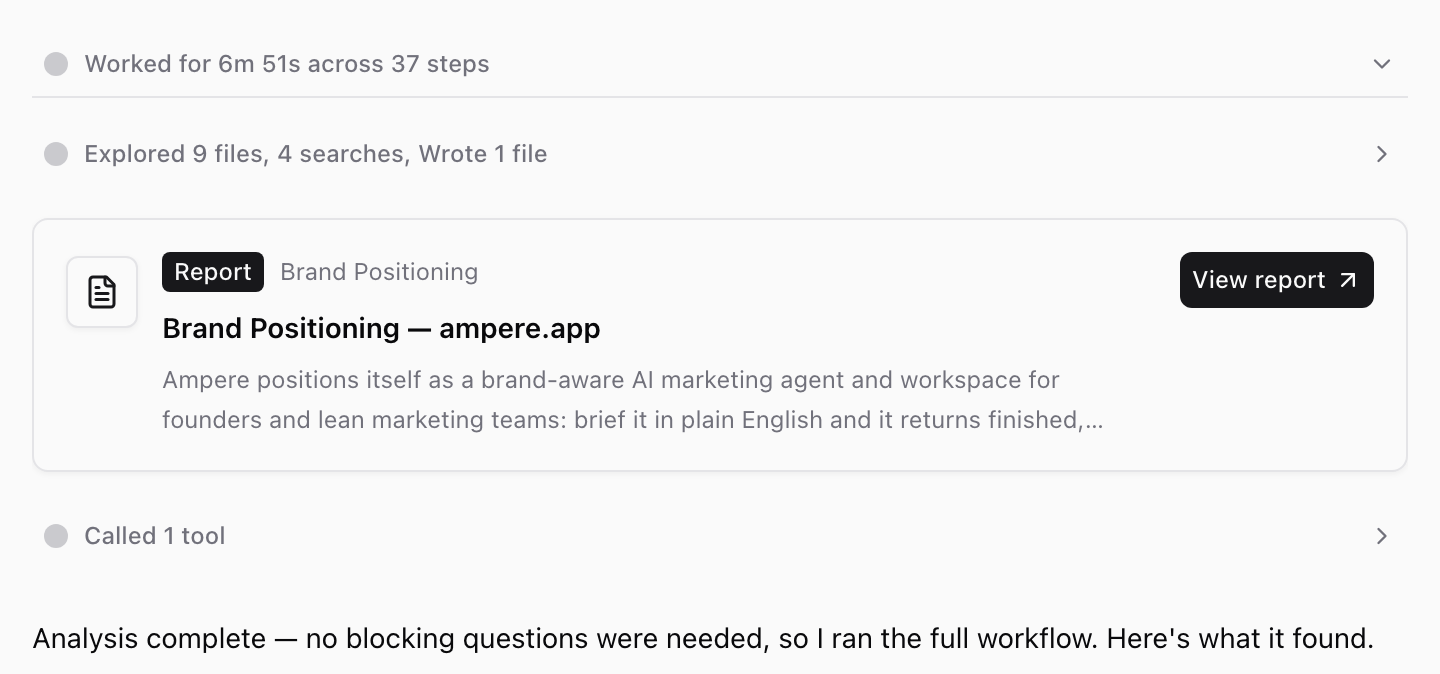
When Ampere saves a report, it shows a report card with a Report badge, the report type, the title, and a short summary. While Ampere is still working, the card appears in the conversation. Once Ampere finishes, the card moves into the Worked for summary above Ampere's reply, and that summary is collapsed. Select the summary to see the card, then select View report. The report opens in its own tab in the Workspace panel. You can come back to the card later, even in an older session.
Review the title, sections, sources, assumptions, and recommendations. Then use the buttons above the report:
- Select Print / Save as PDF (the printer icon, marked 1 in the screenshot) to print the report or save a PDF copy from your browser's print dialog.
- Select Edit to change the report, then select Save.
- Select Download (the download icon, marked 2 in the screenshot) to save a copy of the report file.
To see what a term in the report means, select Glossary.
If a section needs deeper work, ask Ampere to revise it. Some reports, such as social proof and company profile reports, show Read-only and have no Edit button, so ask Ampere for changes instead. For more on reviewing, editing, and printing reports, see View, edit, and save brand reports as PDF.
You can also open saved reports from the Project's Assets tab. Select Projects, open the Project, and select Assets. During a session, select the Project settings gear icon, then Assets. Brand and market reports are listed under Brand assets in the All asset types menu. Select a report to preview it with the same buttons.
Reuse the report later
Saved reports are useful as context for future work. You can ask Ampere to use a saved report when drafting content, planning campaigns, building visuals, or comparing positioning options.
Brand and market reports are shared with every Project in your Organization by default, so sessions in other Projects can use them too. In other Projects, a shared report is read-only. To keep a report in the Project that saved it, select More options on its row in that Project's Assets tab, then turn off Share org-wide.
Saved reports usually get an expiry date: 12 months after they're saved, or 30 days for trend snapshots and 14 days for recent news. After that date, the report shows Expired in Assets, and Ampere treats it as out of date. To change the date, see Manage saved Project Assets.
Because reports can become stale, refresh public-data-heavy reports when market facts, pricing, competitors, or channels change. When a current report is already saved, Ampere reuses it instead of researching again, so ask Ampere to refresh the report when you want new research.
Was this article helpful?
Related articles
Learn what to include in an Ampere prompt so Ampere can start with the right goal, context, and review step.
Learn how to use Project Assets to find saved reports, generated files, and reusable project assets.
Learn how Ampere saves brand colors, logos, and visual identity reports as reusable Project Assets.