Tour an Ampere session
Learn how an Ampere session brings together chat, progress, and the session workspace where you review files and browser activity.
Last reviewed August 2026
An Ampere session brings together your conversation with Ampere and the session workspace it uses to do the work. Use this article when you are new to sessions and want to know what each area is for before you start clicking around.
You do not need to understand every control on day one. Start with the chat, the composer, and Workspace files. The rest becomes useful as your sessions get more complex.
The session list
The left side of the app lists the chat sessions you can access. Use it to return to previous work, review sessions that need attention, or start from a selected Project when that is required.
If you see a project prompt, select or create the project that matches the work you want to do. Projects help keep related sessions, briefs, files, and reusable context together.
The session header
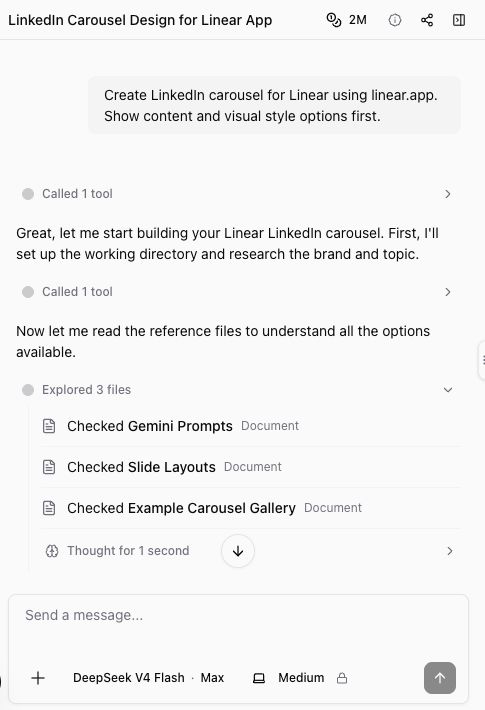
The top of an open session shows the session title and session-level controls. Depending on the session state, you may see controls for diagnostics, sharing, usage or credits, and the Workspace panel.
Use the title to confirm you are in the right chat before continuing. Use sharing controls only when you mean to give someone else access to the session. Use diagnostics or support details when you are troubleshooting a stuck or failed session.
The chat timeline
The center of the session is the conversation with Ampere. It shows your messages, Ampere's responses, any thinking or work summaries that are visible to you, and suggested follow-ups when Ampere has next-step ideas.
Read the latest response first, then scan for anything Ampere asks you to confirm. If Ampere is waiting for input, answer in the composer instead of starting a new session. If a result is useful but not quite right, ask for a revision in the same chat so Ampere keeps the context.
The message composer
The composer is where you continue the session. You can ask a follow-up, paste more context, request a revision, or give Ampere the next task.
Good follow-ups are specific:
- "Make the tone more direct and founder-led."
- "Turn this into a 7-slide LinkedIn carousel outline."
- "Create a shorter version for a launch announcement."
- "Use the uploaded brief as the source of truth."
If you see attachment, response, or machine controls, leave them at their defaults unless you know you need to change them. The best first move is usually to describe the marketing outcome clearly.
The Workspace panel
Use Workspace when you want to inspect the files and artifacts created during a session. Ampere can create and edit many output types, including documents, spreadsheets, presentations, PDFs, images, audio, video, Markdown, CSV, JSON, and HTML reports.
The Workspace can also show browser or preview areas when a session uses them. If a file is available, open it from Workspace files to preview it. If the preview is not available or still preparing, use the download option when it is shown and review the original file locally.
What to review before you leave
Before you finish a session, check:
- The latest answer from Ampere.
- Any files or outputs Ampere created.
- Whether Ampere is asking for input.
- Whether the output needs a revision before you use it.
- Whether you should download, save, or share the result.
Ampere can help plan and produce marketing work, but you stay responsible for reviewing the output. AI results can be incomplete or inaccurate, and public-data sources can be partial or unavailable. Use the session and Ampere's session workspace to inspect and improve the work before it leaves Ampere.
Was this article helpful?