Use voice input to dictate Ampere prompts
Understand how to dictate Ampere prompts with voice input, review the transcript, and send it like a typed prompt.
Last reviewed August 2026
Use voice input when it is faster to talk through an Ampere request than type it. Ampere turns your speech into editable composer text, so you can review the transcript before you send the prompt.
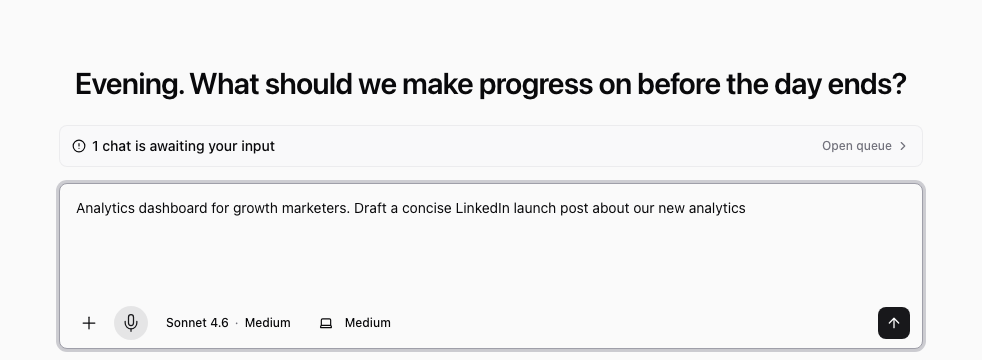
Voice input is for briefing Ampere by speech. It does not make Ampere speak responses aloud, start a live voice call, clone a voice, or automatically send your prompt.
Where voice input appears
Use the microphone control in the Ampere composer on Home or inside Ampere's session workspace. The control appears when voice input is available for your browser and Workspace.
Voice input works best for English prompts. For important names, URLs, numbers, or claims, review the transcript carefully before sending.
Dictate a prompt
- Open Home or an Ampere chat.
- Select the microphone control in the composer.
- Allow microphone access if your browser asks.
- Speak the request you want Ampere to work on.
- Select the stop control when you are done speaking.
- Review and edit the transcript in the composer.
- Send the prompt when it says what you want.
You can still type before or after dictation. Voice input adds text to the same draft field you use for typed prompts.
What to review before sending
Check the transcript for:
- Product names, customer names, and campaign names.
- URLs, numbers, dates, and pricing claims.
- Any private information you did not mean to include.
- Whether the prompt gives Ampere the goal, audience, source material, and expected output.
If the transcript is messy, edit it directly or clear the composer and start again.
If the microphone does not start
Check that your browser allows microphone access for Ampere. If you previously denied permission, open your browser site settings, allow the microphone, then reload Ampere.
Voice input may also be unavailable if the browser does not support microphone capture, your Organization cannot start new Ampere work because of billing or usage limits, or the transcription provider is temporarily unavailable. In that case, type the prompt and try voice input again later.
Good uses for voice input
Voice input is useful when you want to rough out a longer brief, explain a campaign idea, summarize what changed in a meeting, or capture context while it is fresh. It is less useful for prompts that need exact spelling, long URLs, or carefully formatted data.
Was this article helpful?
Related articles
Learn how to ask Ampere for images, visual concepts, and image revisions inside a chat.
Learn review and edit outputs in Ampere with product-grounded steps, current limits, and where to go next.
Learn how to start a first Ampere session, what to include in your prompt, and what to review next.