Browse and search Project Assets
Learn how to use Project Assets to find saved reports, generated files, and reusable project assets.
Last verified about 1 month ago
Project Assets is the project-scoped library for reusable work. Use it to find saved reports, generated files, uploaded files, and other assets that belong to a specific project.
Assets are connected to the project you opened. If you cannot find an item, first confirm you are in the right organization and the right project.
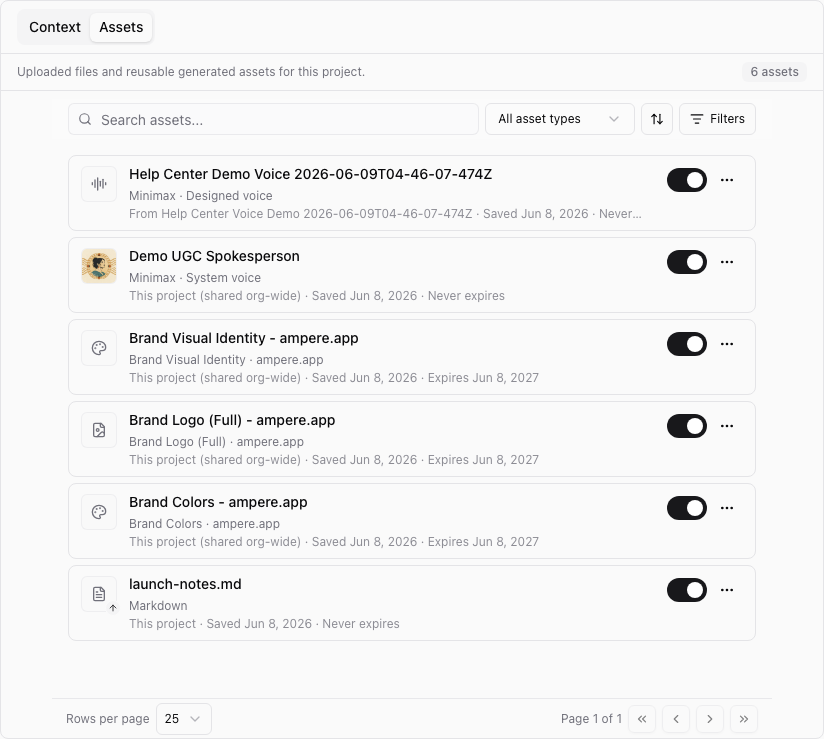
Open Project Assets
- Sign in to Ampere.
- Open Projects.
- Select the project that owns the work.
- Open the Assets tab.
The tab shows assets saved to that project and a preview area for the selected item.
Search and filter assets
Use the search field when you know part of the title, file name, or saved asset text you are looking for.
Use the available filters to narrow the list by asset type, domain, creator, expiry status, and sort order when those controls are available for the project's assets. Select Reset to clear filters and return to the default view.
Search and filters affect the project you are viewing. They do not search every organization or every project at once.
Preview an asset
Select an asset row to open its preview. Depending on the asset type, the preview can show a report, file, HTML preview, text content, or another saved output view.
Some report assets can be edited directly from the preview. If an asset is editable, use Edit, make your changes, and save. If it is not editable, use the preview to inspect or download the asset instead.
Keep reusable work in the right place
Use Project Assets for work that should stay attached to one brand, campaign, client, product launch, or research project. That makes it easier for future Ampere sessions and teammates to find the right supporting material.
If an asset belongs to a different project, open that project before searching. If a saved item is outdated, archive, replace, or delete it only when you are sure it is no longer needed.
Where to go next
For setting project context, read Set up brand context. For reusable brand visuals, read Save brand colors, logo, and visual identity.
Was this article helpful?