Work with Workspace files
Learn where Ampere keeps session files, how to open them, and what to do when a file needs preview, upload, or review.
Last verified 3 days ago
Workspace files are the files and folders Ampere can use or create inside a session. Use them when you want to review generated outputs, open a file preview, upload source material, or ask Ampere to keep working from a specific file.
This article explains the file area itself. For downloading files or exporting a session as a zip, see Download outputs and zip exports.
What Workspace files are for
Ampere has an isolated Workspace for each session. Depending on the task, that Workspace can include:
- Source files you upload or attach.
- Files Ampere creates while working.
- Output folders for generated deliverables.
- Previewable files you can inspect in the session workspace.
- Files you ask Ampere to revise, organize, move, or reuse.
Workspace files are useful because they make the work tangible. Instead of only reading a chat answer, you can inspect the file Ampere created and decide what should happen next.
Open Workspace files
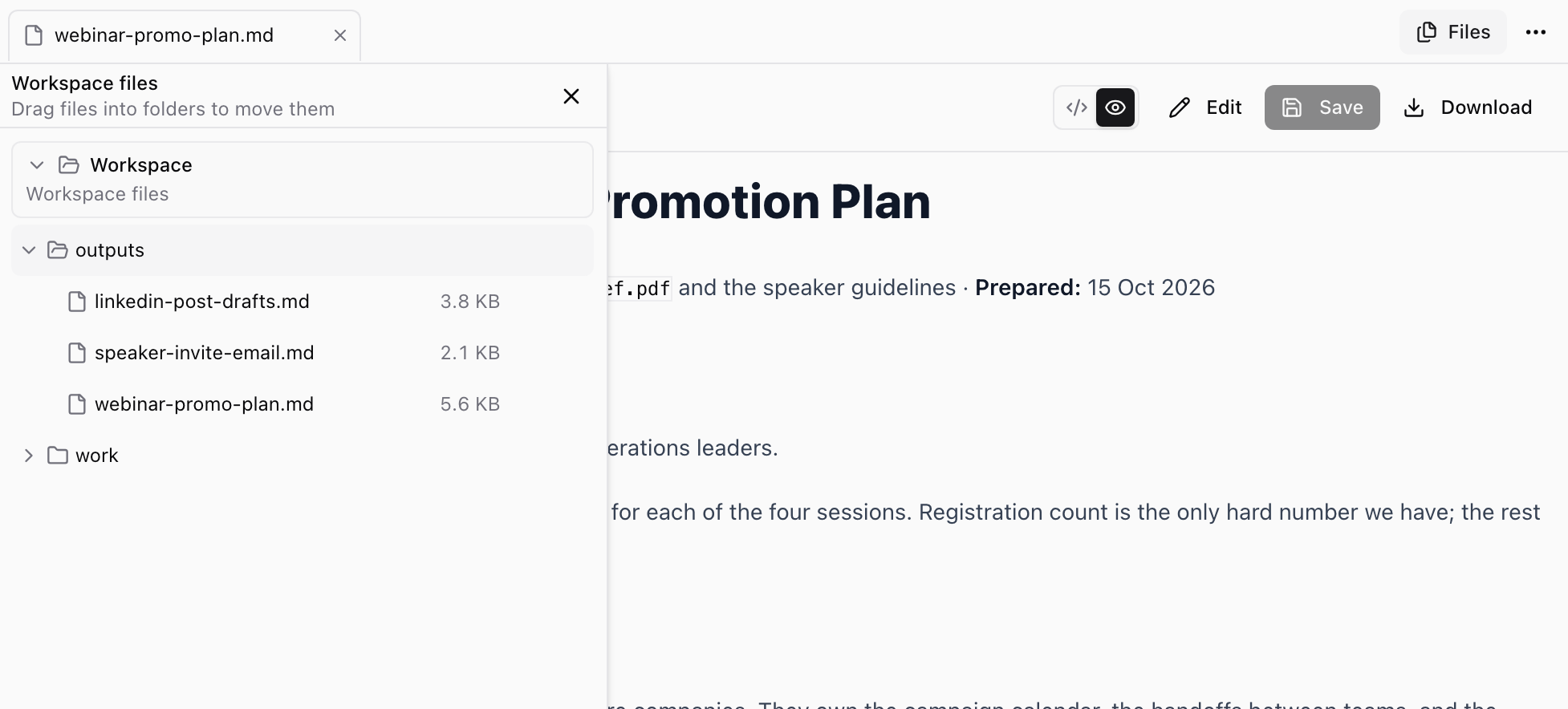
If the Workspace isn't showing beside the chat, select Show Workspace at the top right of an Ampere session. Then select Files at the top of the Workspace. The Workspace files list opens over the left part of the Workspace. It starts at the Workspace folder and shows the session's folders, such as outputs and work.
Select a file to open it in its own tab. The list closes so you can see the file; select Files to reopen the list. To move a file, drag it into another folder in the list.
You can also open a file from the chat. Ampere's reply shows a card for each file it delivers, marked Deliverable, with Open and Download buttons. Select Open to see the file in the Workspace, or select a file name Ampere mentions.
If the Workspace shows Workspace not open, select Open Workspace. This usually takes a few seconds but can take a minute or two.
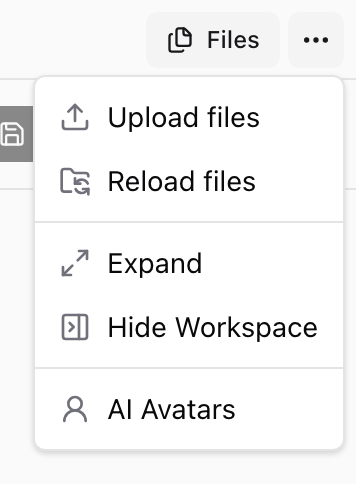
For more file controls, select More Workspace actions (the three dots next to Files):
- Select Reload files when Ampere just created or changed files and the list has not updated yet.
- Select Upload files when you want to add source material for the session.
Open folders, such as an outputs folder, to look for generated deliverables. To see all of the session's output files in one list, select Outputs at the top of the session.
If a file is not visible yet, wait for Ampere to finish the step it is working on, then select Reload files.
Preview files when available
Ampere's session workspace previews can support many common output types, including images, PDFs, Word documents converted to preview PDFs, audio, video, spreadsheets, presentations, standalone HTML documents, Markdown, JSON, and text-like files.
If a preview opens, use it to check the file before you download or share it. Look for:
- Whether the file is the output you expected.
- Whether the formatting, images, tables, or slides look right.
- Whether the content needs revision.
- Whether you should ask Ampere to create another format.
The file's header has the controls for that file. For example, a Markdown file has Raw and Preview views, Edit and Save for changing the text, and Download. For more on editing, see Review and edit outputs.
If a preview is unavailable, still preparing, too large, empty, protected, corrupted, or unsupported, use the available download option when shown and review the original file locally.
If a report, Markdown, or text file Ampere saved to your Project was updated there later, its tab shows You're viewing an older copy of this file. Select Open updated version to see the saved asset.
Upload files for Ampere to use
Upload files when you want Ampere to work from a file that is not already in the session. Open More Workspace actions and select Upload files, or drag files from your computer onto the Workspace files list. To upload into a specific folder, select it in the list first or drag the files onto it. Good source files include briefs, notes, outlines, exported reports, product screenshots, brand assets, or reference documents you have permission to use.
After uploading, tell Ampere what to do with the file. For example:
- "Use the uploaded brief as the source of truth."
- "Summarize this PDF and turn it into a LinkedIn post outline."
- "Use this screenshot as the visual reference."
- "Compare the uploaded spreadsheet to the campaign plan."
Do not assume Ampere will know which uploaded file matters if there are several similar files. Name the file or describe it clearly in your follow-up.
Files you upload here stay with this session. If a file should be available to later sessions in the same Project, add it to the Project instead. Project files don't appear in Workspace files, but Ampere can still use them in the Project's sessions.
Ask Ampere to work with files
You can ask Ampere to continue from Workspace files in the same session. Useful follow-ups include:
- "Open the newest file in the outputs folder and summarize what changed."
- "Create a shorter version of this report."
- "Turn that outline into a presentation."
- "Move the final files into a folder named final."
- "Create a downloadable version of these outputs."
Keep file requests specific. If the session workspace has many files, tell Ampere which folder or file you mean.
If you can open files but not change them
Some sessions let you open and download files but not change them:
- On the Free Plan: you can open and download your Free task results. Uploading, editing, moving, or deleting files, and reopening a Workspace that isn't open, come with paid plans. Trying one opens the Work with files on a paid plan dialog. Your own prompts and follow-up questions also come with paid plans. See Plans and pricing.
- After you upgrade: a Free task's files stay as they were delivered. To keep working on them, select Continue in a paid session on the task's card on Home.
- With view-only access: the Workspace shows Read only. You can open, preview, and download files, but you can't upload, edit, move, or delete them. If the Workspace isn't open, ask someone who can edit the session to open it.
Keep review in the loop
Workspace files help you inspect the work before it leaves Ampere. Before using a file, check that it opens, matches the request, uses the right source material, and is accurate enough for your use case.
AI outputs can be incomplete or inaccurate, and public-data sources can be partial or unavailable. Treat the session workspace as the place to review, revise, and confirm the work before you publish, send, or rely on it.
Was this article helpful?
Related articles
Learn how to review Ampere outputs, download files when available, and ask Ampere to bundle multiple outputs as a zip.
Understand what happens after you ask Ampere for marketing work, from planning to files, review, and follow-up.
Learn how an Ampere session brings together chat, progress, and the session workspace where you review files and browser activity.