Open Project Asset cards from an Ampere chat
Learn what Project Asset cards in an Ampere session show and how to open the saved asset in Workspace.
Last verified 3 days ago
When Ampere saves or updates a reusable asset in a Project, such as a report, logo, or AI avatar, the chat shows a Project Asset card. Select the card to open the saved asset in Workspace.
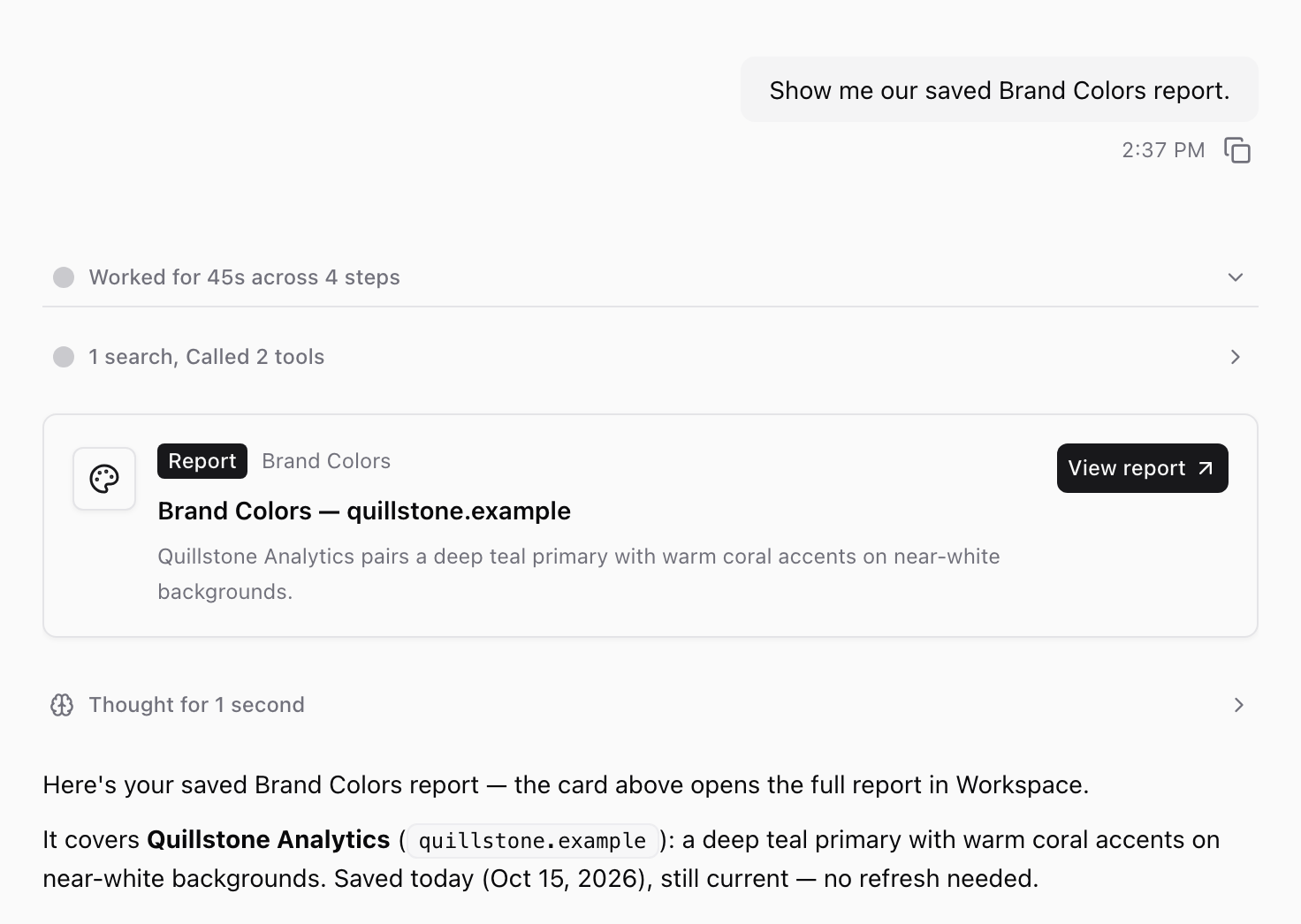
Use the card when you want to review, edit, print, download, or reuse the saved asset.
What a Project Asset card means
A Project Asset card means the asset is saved in the Project, so you and Ampere can reuse it in later sessions.
Ampere shows a card each time it saves a new asset or updates one. It can also show a card for an asset that's already saved when you ask, for example "Show me the saved competitors report." Showing a saved asset doesn't redo its research. For fresh research, ask Ampere to update the asset.
Each card shows:
- A Report or Asset label and the kind of asset, such as Brand Colors.
- The asset's name, which can include the website the asset covers.
- A short summary, when Ampere adds one.
- A View report or View asset button.
A saved AI avatar appears as an avatar card with a View avatar button.
Project Asset cards are only for assets Ampere saves to a Project. Files you upload to a Project don't get cards; open them from the Project's Assets tab. Other files Ampere creates during a session can appear as file cards labeled Deliverable, with Open and Download buttons.
Open the saved asset
- Find the card. While Ampere is working, the card appears in the chat as soon as Ampere saves or shows the asset. After Ampere finishes, the card is inside the collapsed summary above Ampere's reply, such as Worked for 45s across 4 steps. Select the summary to show the card.
- Select the card, or its View report or View asset button. Ampere opens Workspace and shows the asset in its own tab. If that asset is already open, Ampere switches to its tab.
Cards that appear after Ampere's reply, such as file cards for deliverables, stay visible without opening the summary.
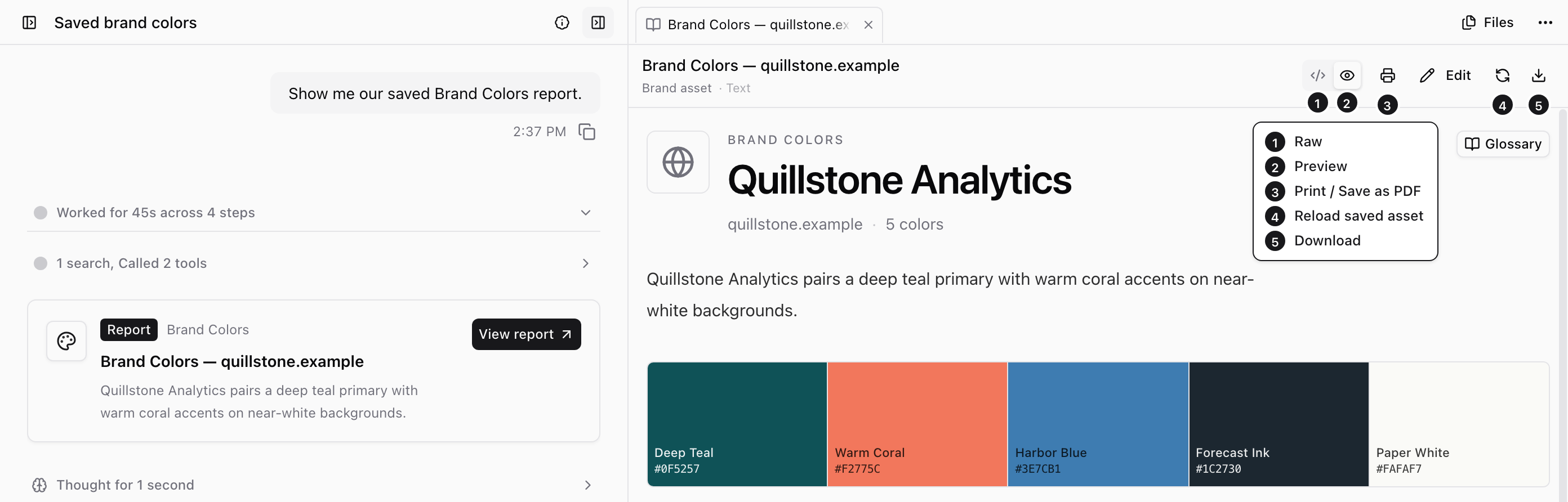
The tab shows the asset as it's saved now, so an earlier card in the chat opens the latest version after Ampere updates the asset. Cards in earlier sessions still open, even if that session's Workspace is no longer active.
For an AI avatar, select View avatar to open the avatar's details in Workspace.
If the asset can't load, the tab shows Couldn't load this report or Couldn't load this asset. The asset may have been deleted, or you may not have access to it. Select Try again to load it again.
Review the saved asset
Use the tab to review the full asset. Depending on the asset type, you can:
- Switch between Preview and Raw.
- Select Edit to change a brand or market report, then select Save.
- Select Print / Save as PDF to print a brand or market report or save it as a PDF.
- Select Download to save a copy of the file.
- Select Reload saved asset to load the latest saved version.
Most of these controls are icons at the top of the tab. Hover over an icon to see its name.
If you can't edit an asset, Read-only appears under its name. For more on reviewing, editing, and printing reports, see View, edit, and save brand reports as PDF.
On the Free Plan, you can open and review saved assets. Editing them comes with paid plans.
The chat card is a starting point. The saved asset view is the place to inspect the full content.
Ask Ampere to use the asset
After opening or confirming the asset, you can ask Ampere to use it as context in follow-up work. Be specific:
- "Use the saved positioning report to draft three LinkedIn post angles."
- "Use this visual identity report when suggesting image prompts."
- "Summarize the saved competitor report into a launch planning checklist."
On the Free Plan, sessions don't accept follow-up questions, so asking Ampere to build on a saved asset comes with paid plans. To compare plans, see Plans and pricing.
Keep assets current
If a card points to an outdated asset, ask Ampere to update it, or edit or replace it yourself, rather than continuing to reuse stale context. To set an expiry date, turn an asset off for the Project, or delete it, use the Project's Assets tab. For steps, see Manage saved Project Assets.
Was this article helpful?
Related articles
Learn how to ask Ampere to research, build, and save brand or market reports for a Project.
Learn how to use Project Assets to find saved reports, generated files, and reusable project assets.
Learn how to review, edit, and save app-native brand reports as PDFs from Project Assets.