Manage saved Project Assets
Learn how to set expiry, turn off, delete, or replace saved Project Assets when work changes.
Last verified 3 days ago
Project Assets are the files you upload to a Project and the reusable assets Ampere saves there, such as tone guides, color palettes, and visual identity reports. Manage them from the Project's Assets tab: delete an asset, or replace it with a newer version. For assets Ampere saves, you can also change when one expires, turn it off for the Project, or choose whether it's shared with other Projects.
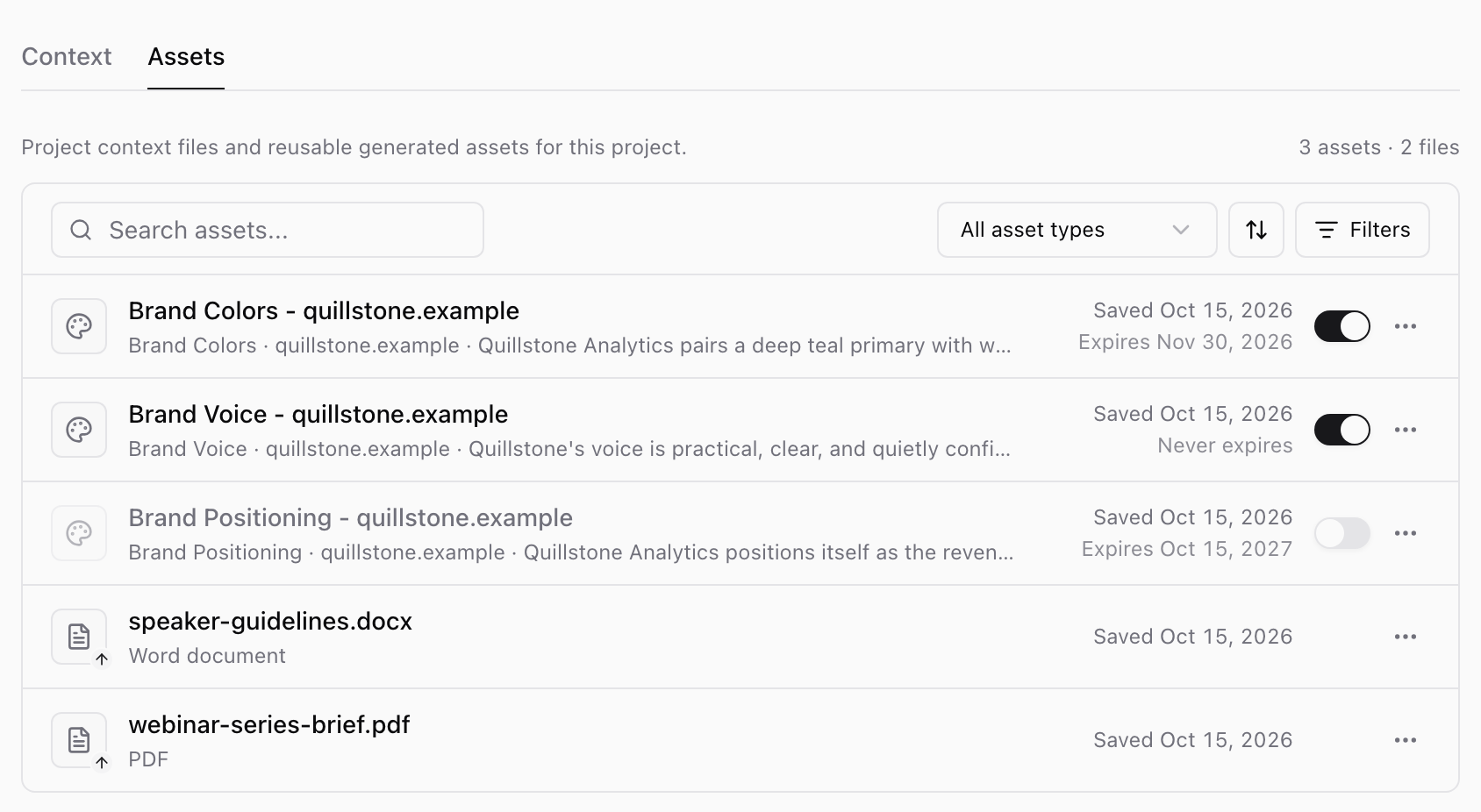
Use these controls when an asset is out of date, temporary, duplicated, or no longer right for the Project.
Before you start
Managing saved assets is part of every paid plan. On the Free Plan, you can open the Assets tab to review your saved assets, and the tab shows Managing saved assets comes with paid plans. To edit, turn off, or delete assets, change whether they're shared, or set expiry dates, upgrade to a paid plan. To compare plans, see Plans and pricing.
Open Project Assets
Select Projects from the app navigation, open a Project, and select the Assets tab. During a session in a Project, you can also select the Project settings gear icon, then Assets.
Each row shows the asset's name and type and when it was saved. The list holds two kinds of assets:
- Files you upload have a small arrow on their icon. Ampere can use them in every session in this Project until you delete them, so they don't have an expiry date or a switch. Their More options menu offers Delete.
- Assets Ampere saves, such as brand reports, logos, AI avatars, and custom voices, also show when they expire and have a switch. Their More options menu offers Set expiry and Delete, plus a Share org-wide switch for assets that can be shared with other Projects.
To find an asset, type in the Search assets box or choose a type from the All asset types menu. Select the Sort button to sort by Last updated or Date created, and choose Newest first or Oldest first. Select Filters to narrow the list by Created by (All projects, This project, or Other projects) or by Status (All, Active, or Expired).
Select an asset to preview it. Depending on the asset type, you can switch between Preview and Raw, select Edit to change it, select Download, or select Print / Save as PDF for a report.
Set an expiry
Many assets Ampere saves already have an expiry date. Most brand reports, for example, expire a year after they're saved. Use Set expiry to pick a different date, such as an earlier one for a pricing report you expect to change soon, or to choose Never expires so Ampere keeps treating the asset as current. Files you upload don't have an expiry date; they stay available until you delete them.
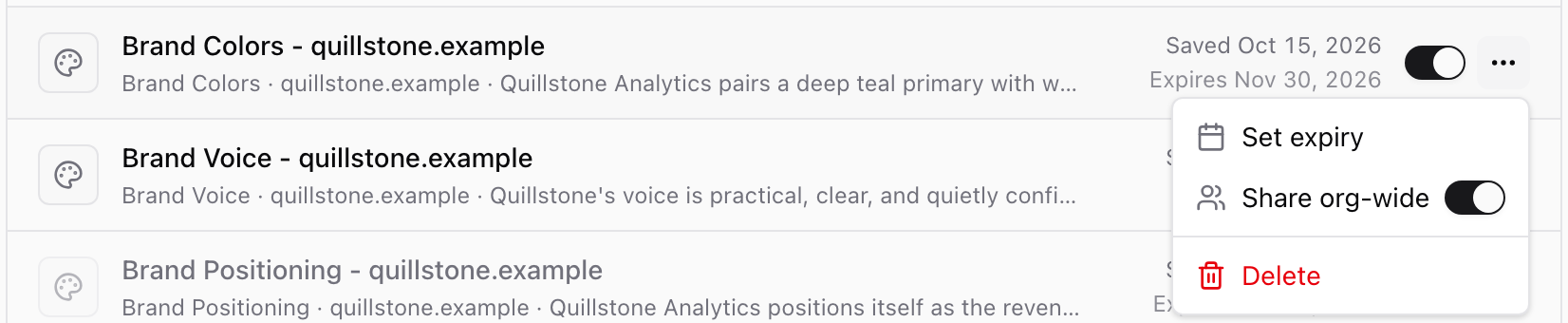
- Select More options (the three dots) on the asset's row.
- Select Set expiry.
- Choose Never expires, or choose Expires on a specific date and pick a future date. Selected dates expire at 11:59 PM local time.
- Select Save expiry.
The row then shows the new expiry date.
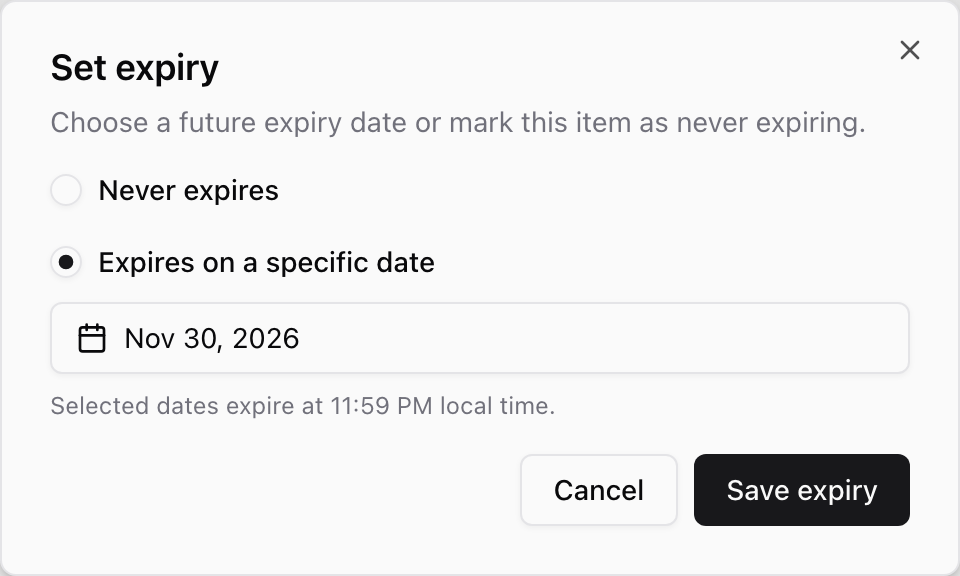
After the date passes, the row shows Expired. Ampere treats an expired asset as out of date and gets fresh information when a task needs it.
An asset that may be out of date for another reason shows Outdated. Review expired and outdated assets, then replace or delete the ones you no longer need.
The Projects page and the top of the Project page also show counts such as 2 expired assets or 1 outdated asset. Select a count to open the Assets tab and review those assets.
Turn an asset off for this Project
Use the switch on an asset's row to turn it off. Ampere stops reusing that asset in this Project's sessions, and the asset stays in the list, dimmed, so you can review it or turn it back on later.
Files you upload don't have a switch. Ampere can use them in every session in this Project until you delete them, so delete a file when you no longer want Ampere to use it.
Share an asset with other Projects
When Ampere saves an asset that can be shared, such as a brand report, logo, AI avatar, or custom voice, it's shared with every Project in your Organization by default, and Share org-wide is on in its More options menu. To keep an asset in this Project only, select More options on its row and turn off Share org-wide. Other Projects then stop seeing it. Turn the switch back on to share it again.
In other Projects, a shared asset is labeled From followed by the name of the Project that shared it. You can turn it off in those Projects, and you can set its expiry or delete it in the Project that shared it.
Delete an asset
Deleting can't be undone, so make sure your team no longer needs the asset. If Share org-wide is on for the asset, as it is by default for brand reports, deleting it also removes it from every other Project in your Organization.
- Select More options on the asset's row.
- Select Delete.
- In Delete this item?, select Delete item.
The asset then leaves the list.
Replace outdated assets
To replace an asset, upload the new file to the Project, or ask Ampere to create an updated version in a session in this Project. For upload steps, see Add Project files. When the new version appears in the Assets tab, delete the older version if it's still listed. If your team needs both versions for a short time:
- For a file you uploaded, delete the older file as soon as you finish comparing. Until then, Ampere can use both.
- For an asset Ampere saved, turn the older version off, or set an expiry date on it as a reminder, then delete it when you finish comparing.
If you edit a report or a text asset, select Save before you print it or ask Ampere to use it. For a text asset Ampere saved, Save changes then asks for an expiry setting: choose Save without changing expiry, or set an expiry and choose Save & update expiry. For a file you uploaded, your changes are saved as soon as you select Save.
Saving changes to a report also resets its expiry date, so most brand reports then expire a year from the day you save. If you had chosen a different date or Never expires, set it again with Set expiry.
Was this article helpful?
Related articles
Attach source files to a Project so Ampere can use the right references for related sessions and outputs.
Learn how to use Project Assets to find saved reports, generated files, and reusable project assets.
Learn temporary public file links and revocation in Ampere with product-grounded steps, current limits, and where to go next.