Generate a competitive ad intelligence report with Ampere
Learn how to ask Ampere to review competitors' public ads and summarize what they are running, with clear limits on what public ad data can show.
Last verified 21 days ago
Ampere can look up the ads your competitors run in the public ad libraries from Meta and LinkedIn and in the Google Ads Transparency Center. It can then describe what the ads say, how they look, and what you can learn from them, in a quick summary or a fuller report.
Public ad libraries show what competitors are running, not how well those ads perform. Treat the results as research input for your own judgment, not a complete record of a competitor's advertising.
Before you start
- Have the names of the competitors you want to review, plus their websites if you know them.
- Researching competitors' ads with Ampere comes with paid plans, along with your own prompts, follow-up questions, and Scheduled Tasks. On the Free Plan, Home lists starter tasks under Do more with a paid plan, and selecting Analyze competitor ads opens the Start this task with a paid plan dialog instead of filling the composer.
- Make sure your Organization has credits available. Researching ads and writing up the results uses credits, like other Ampere work.
Start from the Analyze competitor ads task
- Open Home.
- In Start with a task, select Browse all tasks, then choose Competitive Intelligence from the categories. You can also select the Competitive Intelligence chip below the task cards to open that category directly.
- Select Analyze competitor ads.
The task's prompt appears in the Home composer so you can edit it before sending. Nothing is sent until you send it, and if the composer already has a draft, you're asked before it's replaced.
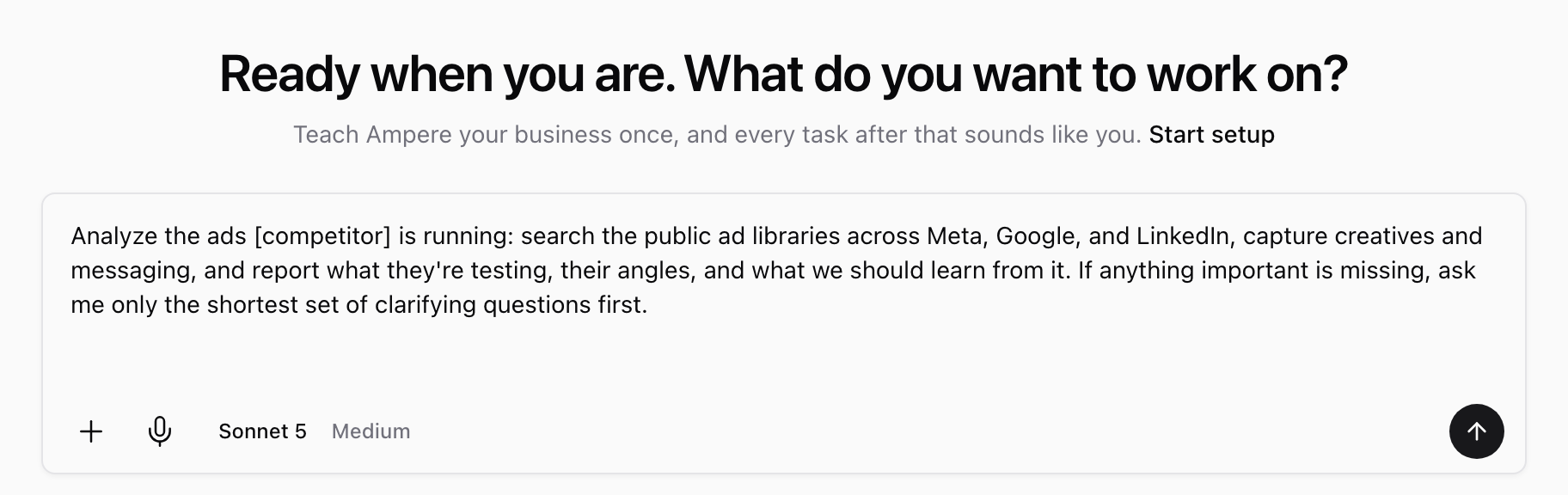
The prompt asks Ampere to search the public ad libraries across Meta, Google, and LinkedIn, capture the creatives and messaging it finds, and report what the competitor appears to be testing, the angles it uses, and what you can learn from them. If something important is missing, the prompt asks Ampere to check with you first, using as few questions as possible.
You don't have to start from the task. You can describe the same request in your own words on Home or in any Ampere session.
Define the competitors and market
Replace [competitor] in the prompt with the competitor you want to review, then add the details that shape the search:
- Website. A brand name can match several advertisers, so include the competitor's website address. If the company has several brands or products, say which one you mean. If more than one company could match, Ampere may ask you to choose or tell you which match it used.
- Market. Name the country you care about, such as the US or the UK.
- Time period. Say whether you want ads running now or ads from a specific date range.
- Platforms. Keep Meta, Google, and LinkedIn, or narrow the request to the platform you care about most.
To compare several competitors, list each one with its website. Each extra competitor adds research, so the session takes longer and uses more credits.
Example prompts:
- "Analyze the ads [competitor] is running in the US. Their website is [website]. Focus on ads shown in the last three months."
- "Search the Google Ads Transparency Center for [competitor website] and summarize the messages and offers in their current ads."
- "Compare the LinkedIn ads from [competitor A] and [competitor B], and show which messages and calls to action each one repeats."
Tell Ampere what to include
Ask for the format you need, such as a short summary in the session, a comparison table, or a report file you can open and download. Then name what you want to learn. Useful requests include:
- Which platforms showed ads for each competitor, and where Ampere found none or couldn't check.
- Example ads with their headline, copy, visuals, format, and call to action.
- Messages, hooks, offers, and calls to action that repeat across ads.
- The products the ads promote and the landing pages they link to.
- When ads were first and last shown, where the library provides dates.
- A link to the ad-library source for each example, so you can check it yourself.
- Lessons you can apply to your own ads.
You can include these in your first prompt or ask for them after the first results arrive. To reuse the results in later work, ask Ampere to save the report to your Project.
When the prompt is ready, send it. Ampere starts a new session for the research, asks any questions it needs, and then shares its findings in the session.
Know what public ad data can show
Public ad libraries are built to show which ads are running and what they say. Keep these limits in mind as you read the results:
- Spend and results aren't shown. Ad libraries don't reveal how much a competitor spends, exactly who it targets, or how its ads perform, such as clicks or conversions. Ampere can describe what a competitor is running, but it can't prove which ads work best.
- Extra details vary. Some libraries share extra information, such as the regions where an ad appeared, a broad impression range, or some targeting details. Ampere reports these as the library shows them, not as a measure of performance.
- Coverage varies. What's available differs by platform, country, and advertiser, and some ads come back with incomplete details.
- Results can change over time. Findings reflect what the libraries showed when Ampere searched. Ads start and stop, so a later search may return different results.
Review evidence and gaps
Before you rely on the findings:
- Check which platforms Ampere searched and which advertiser it matched for each competitor.
- Note any platform where Ampere found no ads, couldn't check, or got only partial results.
- Open the source links for any ads you plan to cite or share.
- If Ampere matched the wrong advertiser, reply with the competitor's exact website and ask it to search again.
An empty result doesn't prove a competitor isn't advertising. The library may not have matched the right advertiser, or it may not cover that platform, country, or time period.
Turn findings into action
Continue in the same session to put the research to work:
- "Turn these findings into three positioning opportunities for us."
- "Draft testable LinkedIn post angles from the strongest competitor gap."
- "Create a table of claims we should avoid copying."
- "Make a checklist of the competitors or platforms we still need to check."
Ampere drafts ideas and assets for your review. It doesn't launch or change ad campaigns. Keep a human review step before you use competitor examples or claims in public-facing work.
Repeat the review on a schedule
To follow a competitor's ads over time, ask Ampere to set up this review as a scheduled task, for example weekly or monthly. Ampere shows you the proposed task to review, and it's saved only after you confirm it. Each run returns its results for your review and uses credits.
The Competitive Intelligence category also includes Schedule a weekly competitor brief, a starter task that asks Ampere to schedule a weekly brief on changes to competitors' sites, pricing, content, and public ads.
Was this article helpful?
Related articles
Learn what public-data AI Tools can return, why results vary, and how to review caveats before you act.
Learn review and edit outputs in Ampere with product-grounded steps, current limits, and where to go next.
Learn why public-data results can be partial or noisy and what to check before relying on them.