Download outputs and zip exports
Learn how to review Ampere outputs, download files when available, and ask Ampere to bundle multiple outputs as a zip.
Last reviewed August 2026
Ampere can create files and folders inside a session Workspace. When the work is ready, you can review outputs in the session workspace, download files when download controls are available, or ask Ampere to bundle multiple files into a zip archive.
Use this article when Ampere has created output files and you want to get them out of the session workspace for local review, sharing, or handoff.
Start from the output you want
Open Workspace or Workspace files in the Ampere session. Look for the file or folder you want to use, often inside an outputs folder.
Before downloading anything, open or preview the output when you can. Check that it is the right file, uses the right source material, and is ready enough to export.
Download one file
When a file has a download option, use it to save the original file locally. This is useful when:
- The preview is unavailable or still preparing.
- You need to inspect the file in a desktop app.
- You want to send the file to someone outside Ampere.
- You need the original file rather than a browser preview.
Some files may not preview because they are unsupported, too large, empty, protected, corrupted, or still preparing. When that happens, use the download option if it is shown and review the file locally.
Bundle multiple outputs
If a session creates several files, ask Ampere to create a zip archive. This is usually clearer than downloading several related files one by one.
Be specific about what should go into the archive:
- "Zip the files in the outputs folder."
- "Create a zip with the final deck and the image assets."
- "Bundle the report, CSV, and summary Markdown into one archive."
- "Make a downloadable archive of everything in the final folder."
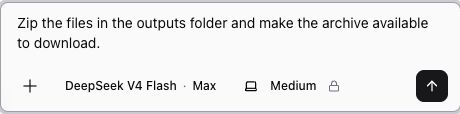
Wait for Ampere to finish the archive
After you ask for a zip, wait for Ampere to confirm the archive is ready or to show the new file in the session workspace. If the file list does not update right away, use Refresh in Workspace files.
If Ampere asks a follow-up question, answer it in the same session. For example, it may need to know which folder is final or whether to include drafts.
Review before sharing
Before you send or publish exported files, check:
- The archive opens locally.
- The expected files are included.
- Draft files, unused assets, or sensitive source files are not included by mistake.
- The output is accurate enough to use.
- Any public-data or AI-generated claims have been reviewed.
Ampere can help package the work, but you are still responsible for checking what leaves Ampere.
If downloading does not work
If you cannot download or open an output:
- Refresh Workspace files and try again.
- Ask Ampere to recreate the file in a simpler format.
- Ask Ampere to move the final files into a new folder and zip that folder.
- Download the original file instead of relying on preview, when the download option is available.
- If the file appears incomplete or corrupted, ask Ampere to regenerate it from the latest approved version.
Keep the request in the same session when possible. That gives Ampere the context it needs to find the right file and create the next export.
Was this article helpful?