Missing output or workspace file
Learn what to check when a Joule output or workspace file is missing, delayed, or not previewing as expected.
Last verified 15 days ago
When Joule creates a file, it usually appears in the session workspace, often inside an outputs folder or as a deliverable card in the chat. If you expected a file and do not see it right away, start by checking whether the session is still working, then refresh Workspace Files before you rerun the request.
Use this article when a Joule output, workspace file, or preview seems missing after a session has been working on a file, report, image, deck, spreadsheet, or other deliverable.
Check whether Joule is still working
If the chat still says Joule is working, wait for the current step to finish before you send the same request again. Some files appear only after Joule finishes writing, saving, or packaging them.
Look for one of these signs before you retry:
- A final response in the chat.
- A deliverable card with Open or Download.
- A new file or folder in Workspace Files.
- A recovery or diagnostics message that needs your attention.
If the session appears stuck instead of still working, use the failed or stuck Joule session guide before you ask Joule to recreate the file.
Open Workspace Files and refresh
Open Workspace in the Joule session, then use Workspace Files to inspect the session's files and folders. Select Refresh if Joule just finished a step and the file list has not updated yet.
Check the most likely places first:
- An
outputsfolder. - A folder with the project, report, deck, or campaign name.
- A file shown as a deliverable card in the chat.
- The latest file with the format you requested, such as Markdown, PDF, CSV, image, presentation, spreadsheet, audio, or video.
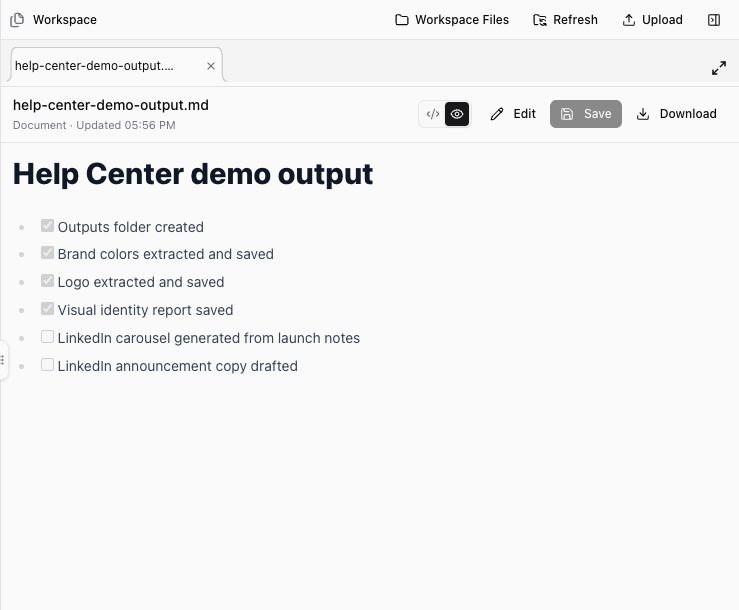
If you find the file, open it before you download or share it. Make sure it matches the request, uses the right source material, and is complete enough for your next step.
If the file exists but preview does not open
Some files may not preview because the preview is still preparing, the file is too large, the format is not supported in the browser, or the file needs to be opened in another app. When that happens, use the available Download option and review the original file locally.
If the preview still looks wrong after downloading the file, ask Joule to create another version in a simpler format. For example:
- "Create a Markdown summary of this report."
- "Export the final table as a CSV."
- "Make a PDF version of the document."
- "Create a zip with the final files in the outputs folder."
Ask Joule to find or recreate the file
If Workspace Files still does not show the output, stay in the same chat when possible and ask Joule to locate it. Name the file or outcome you expected.
Useful follow-ups include:
- "Find the file you just created and tell me its name and folder."
- "Refresh the workspace and list the files in the outputs folder."
- "Move the final file into an outputs folder."
- "Recreate the missing file as Markdown and save it in outputs."
- "Create a zip with the final deliverables."
Keep the request specific. If you only say "make it again," Joule may create a second version without helping you understand what happened to the first one.
Contact support when the workspace still looks wrong
Contact support if the file is important and still missing after Joule has finished, if the same output disappears repeatedly, if Refresh does not update Workspace Files, or if a file exists but cannot be opened or downloaded.
Include:
- The chat title and project name.
- The approximate time the file should have been created.
- The output you expected.
- The file name or format, if Joule mentioned one.
- Whether you tried Refresh, Open, or Download.
- Any copied Diagnostics details from the chat.
That context helps support investigate the specific session without asking you to recreate the issue from memory.
Was this article helpful?
Related articles
Learn how to review Joule outputs, download files when available, and ask Joule to bundle multiple outputs as a zip.
Learn where Joule keeps session files, how to open them, and what to do when a file needs preview, upload, or review.
Learn what to do when a Joule response keeps running, a chat does not recover cleanly, or support needs diagnostics.