Sign in and reset your password
Learn how to sign in to Ampere, use Google sign-in, request a password reset link, and choose a new password.
Last reviewed June 2026
Use the sign-in page when you already have an Ampere account and need to enter the app, continue after a marketing-page call to action, or recover access with a password reset.
You can sign in with email and password or start Google sign-in from the same page. If you forgot your password, use the reset flow rather than creating a second account.
Sign in with email and password
Open the sign-in page, enter the email address for your Ampere account, enter your password, and select Sign in. Use the eye icon only when you need to check what you typed before submitting.
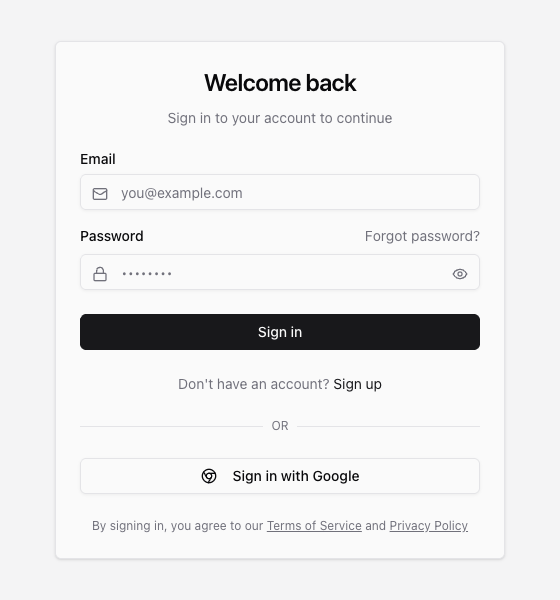
If you arrived from a page that needs authentication, Ampere keeps the safe app destination in the sign-in flow and sends you there after successful sign-in.
Sign in with Google
Select Sign in with Google if your Ampere account uses Google sign-in or you want to continue through Google's account flow. Complete the Google steps in the browser window, then return to Ampere.
Google sign-in may still require Ampere account checks after the handoff, such as legal consent. Follow the prompts shown in Ampere before starting work.
Request a password reset link
If you do not remember your password, select Forgot password? from the sign-in page. On the reset page, enter the email address for your Ampere account and select Send reset link.
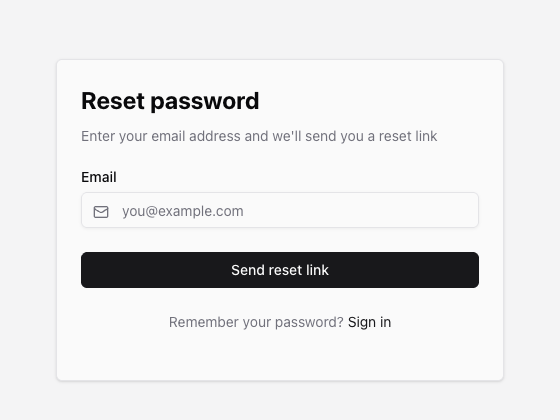
For security, Ampere shows a reset-message confirmation even when the email address does not match an account. Check the inbox and spam folder for the address you entered, then request another link only if you are sure the first one did not arrive.
Do not share a reset link with anyone else. The link is meant for the account email that requested it.
Choose a new password
Open the reset link from your email. If the link is valid, Ampere opens the reset form where you can enter and confirm a new password.
Your new password must include:
- At least 8 characters.
- One uppercase letter.
- One lowercase letter.
- One number.
- One special character.
After the password updates successfully, return to the sign-in page and sign in with the new password.
If sign-in or reset still does not work
Use these checks before contacting support:
- Make sure you are using the same email address you used to create the Ampere account.
- If you signed up with Google, try Sign in with Google instead of email and password.
- If the reset email is missing, check spam or junk folders and then request another link.
- If the reset link was already used or no longer works, request a fresh link.
- If your password is rejected, review the password requirements and choose a stronger password.
Contact support if you still cannot sign in after checking the email address, trying the correct sign-in method, and requesting a fresh reset link. Include the account email address, the approximate time you tried, and what you saw on the sign-in or reset page. Do not send your password or a reset link in a support message.
Where to go next
For signup, legal consent, and email confirmation, read Legal consent and email confirmation. For broader account and data handling basics, read Privacy and data handling basics.
Was this article helpful?
Related articles
Learn how Terms and Privacy consent works during signup and what to do if the verification email does not arrive.
Understand what kinds of data Ampere handles, how AI processing works, and which controls to use before sharing sensitive work.