Failed or stuck Joule session
Learn what to do when a Joule response keeps running, a chat does not recover cleanly, or support needs diagnostics.
Last verified 15 days ago
A Joule session can sometimes take longer than expected, lose connection to its workspace, or show that a response did not finish. Your chat history is still the best place to start. Keep the chat open long enough to see whether Joule finishes, asks for input, or shows a recovery message before you start the same work again.
Do not send the same prompt repeatedly while Joule still appears to be working. That can create duplicate work or make it harder to tell which response is current.
Stop a response that keeps running
If Joule has been working longer than expected and you want to stop the current response, select Stop generating in the composer.
If the stop request does not confirm right away, leave the chat open and wait for the session to settle. The response may still finish, move into a stopped state, or show a message that tells you what to do next.
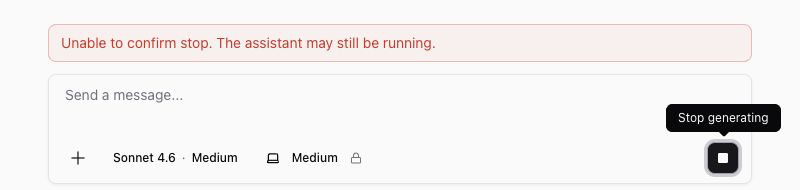
If Joule shows a recovery action such as Restart workspace, use that action before you resend the original request. If the app says the previous response is still stopping, wait a moment and try the recovery action again.
Reopen the chat and review what finished
Open Chats, then select the session again. If the chat opens, review the latest response and any visible outputs before you decide what to do next.
Check for three things:
- A final answer or partial answer in the transcript.
- Files or outputs in the workspace that may have been created before the issue appeared.
- A visible next step, such as retrying, restarting the workspace, answering a question, or starting a new chat.
Joule recovery is best effort. A restarted workspace may let you continue, but it does not guarantee that every in-progress step can be resumed. If the previous response is incomplete, ask Joule to continue from the visible context or start a new chat with a short summary of what already happened.
Use Diagnostics when the chat still needs help
Each Joule chat has a Diagnostics action in the chat header. Open it when a session does not recover, when support asks for troubleshooting details, or when the app shows a workspace connection message.

Diagnostics can show the session and workspace identifiers needed for support review. It can also run a lightweight workspace health check. If the health check offers a workspace fix, use it before you retry the same request.
Use Copy details when you need to send context to support. Do not paste passwords, private tokens, billing details, or unrelated customer data into your support message.
Retry safely
Retry only after the current response has stopped, finished, or clearly moved into a recovery state. When you retry, make one change that helps Joule continue cleanly:
- Ask Joule to continue from the last visible result.
- Summarize what finished and what is still needed.
- Attach or reference any output file that was created before the issue.
- Start a new chat in the same project if the current chat will not reopen.
If the original request was very broad, split it into a smaller next step. For example, ask for an outline first, then ask Joule to create the file, deck, image, or report after the direction is clear.
Contact support
Contact support when the same chat will not recover, the response keeps running after you try to stop it, the workspace fix does not work, or important outputs are missing after the session settles.
Include:
- The chat title and project name.
- The approximate time the issue happened.
- What you asked Joule to do.
- What you expected to happen.
- What you saw instead, including any visible warning.
- The copied Diagnostics details.
That context helps support investigate the specific session without asking you to recreate the problem from memory.
Was this article helpful?
Related articles
Understand why Ampere outputs can need review, what to check before using them, and how to improve the next run.
Learn what to check when Joule browser or workspace access is unavailable, where to find Diagnostics, and when to contact support.
Learn how to inspect a failed AI Tool run, check the input, and decide whether to retry or contact support.