Update your profile and change your password
Learn how to update your Ampere profile, avatar, and password from Profile in the Account section of Settings.
Last reviewed August 2026
Use your Profile page when you need to update the name or avatar shown in Ampere, or when you want to change the password for email/password sign-in. These controls apply to your personal account, not to the Organization profile your teammates see in Organization settings.
You need to be signed in before you can open Profile. If you cannot sign in yet, use Sign in and reset your password instead.
Open Profile
- Sign in to Ampere.
- Open your avatar menu.
- Select Profile.
Profile opens in the Account section of Settings. The Account rail also gives you access to Notifications and Privacy.
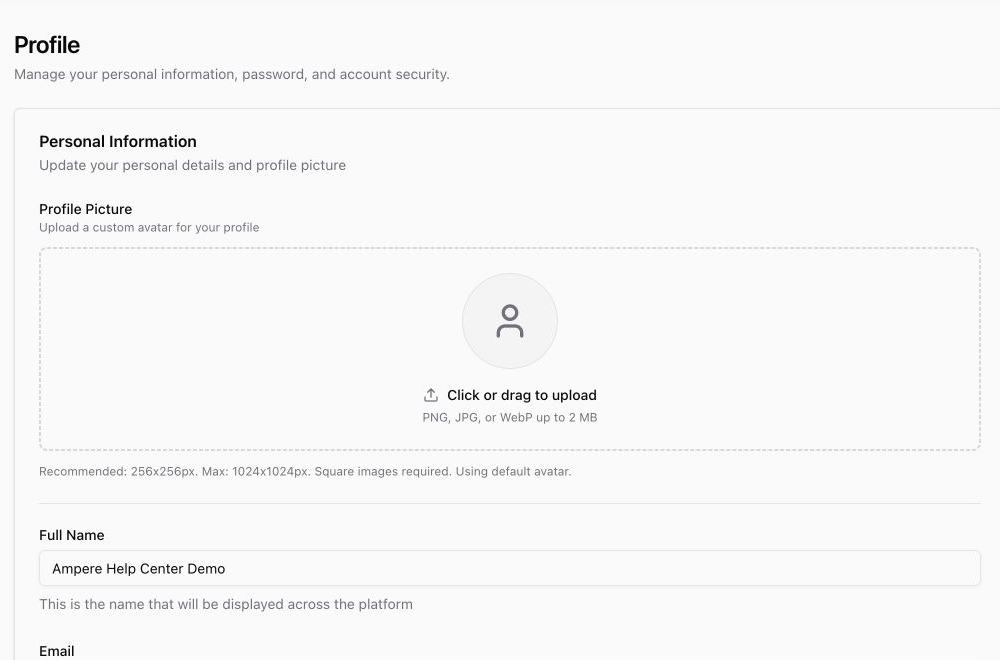
The Profile page includes personal information, profile picture, password, and account security sections.
Update your name
In Personal Information, edit Full Name, then select Save Changes.
Your full name must be at least two characters. Ampere uses this name across the product to identify your account to you and to teammates where your account appears.
Your email address is shown on the Profile page, but it cannot be changed there. If your team needs to use a different email address, contact support or sign in with the account that should own the work.
Update your profile picture
Use Profile Picture to upload or remove your avatar.
You can click the upload area or drag an image onto it. Ampere accepts PNG, JPG, and WebP images up to 2 MB. The recommended avatar size is 256 by 256 pixels, and the image must be square. If the image is not square, Ampere opens a crop step before upload.
After the upload completes, Ampere updates your account and refreshes the avatar anywhere your profile is shown. To remove an existing avatar, use the remove button on the avatar preview.
Change your password
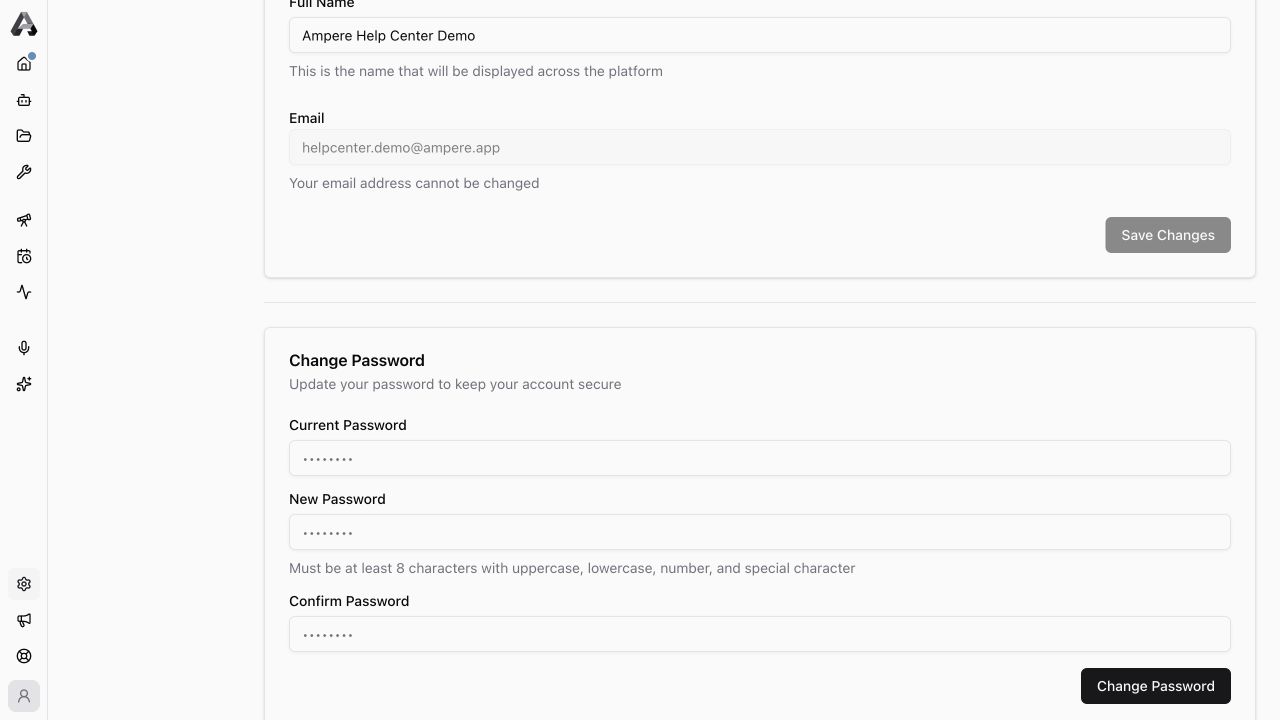
Use Change Password when you know your current password and want to replace it.
- Enter your current password.
- Enter the new password.
- Confirm the new password.
- Select Change Password.
The new password must be at least eight characters and include at least one uppercase letter, one lowercase letter, one number, and one special character. It cannot be longer than 72 characters.
If the password fields do not match, Ampere asks you to fix the confirmation before it submits. If the current password is wrong or the new password is not accepted, review the message on the form and try again.
If you forgot your current password
The Profile page is for changing a password while you are already signed in. If you forgot the current password, sign out and use the password reset flow from the login screen.
For reset links and sign-in troubleshooting, read Sign in and reset your password.
Keep your account secure
Choose a password you do not reuse elsewhere. Do not paste passwords, reset links, API keys, private customer data, or billing details into Ampere prompts, AI Tools, project files, or support messages unless support explicitly asks for the minimum safe detail needed to troubleshoot your account.
Was this article helpful?