What to do when an AI Tool run fails
Learn how to inspect a failed AI Tool run, check the input, and decide whether to retry or contact support.
Last reviewed July 2026
A failed AI Tool run means Ampere recorded the attempt, but the tool did not produce a usable result. Start from the run's History entry so you can review what happened before you change inputs or run the tool again.
Failures can come from the input, the source data, the uploaded file, the public page being unavailable, or the tool being unable to return a result for that request. Reviewing the failed run does not spend credits. Running the tool again may spend credits, so check the details first.
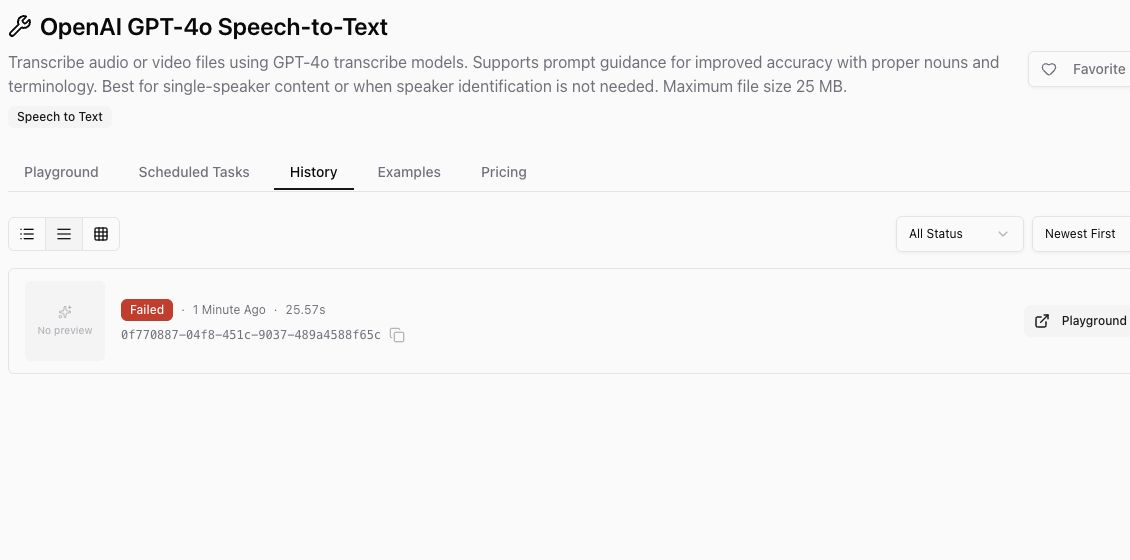
Find the failed run
Open the AI Tool you used, then select History. The History list shows each run with its status, when it ran, how long it took, and its execution ID.
Use the status filter when you only want to see failed runs. Select the failed run to open its details.
Review the timeline and input
In the execution details, start with Timeline. The timeline shows when the request was submitted, when execution started, and when it failed.
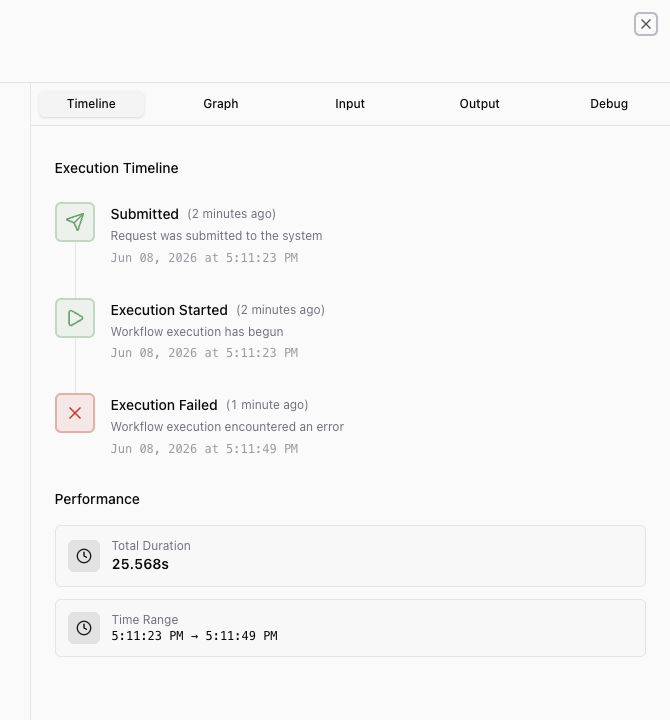
Next, review the input you provided. Look for the most common causes:
- A source URL that needs login access, has moved, or cannot be opened publicly.
- A file that is missing, too large, unsupported, or not the kind of file the AI Tool expects.
- A prompt or query that is too broad, too narrow, or missing the specific source the AI Tool needs.
- A public-data source that returned no usable result for that request.
If the run has no output, use the timeline and input details to decide your next step.
Decide whether to retry
Retry only after you have a concrete change to make. For example, replace a private URL with a public one, upload a supported file, narrow the query, or wait and try again if the source may be temporarily unavailable.
Use Edit Inputs or return to the AI Tool's Playground when you need to adjust the request. Use Run Again only when you are comfortable running the same request again.
Contact support when the failure does not make sense
Contact support if the same request keeps failing after you check the input, if the source is public and working, if the failure blocks important work, or if your credit usage looks wrong.
Include the AI Tool name, the execution ID, the approximate time of the run, and what you expected the tool to return. That gives support the context needed to investigate the specific attempt.
Was this article helpful?
Related articles
Understand why Ampere outputs can need review, what to check before using them, and how to improve the next run.
Learn what to check when Ampere browser or Workspace access is unavailable, where to find Diagnostics, and when to contact support.
Learn where to delete your Ampere account, what to check first, and why the action is permanent.