Work with workspace files
Learn where Joule keeps session files, how to open them, and what to do when a file needs preview, upload, or review.
Last verified about 2 months ago
Workspace files are the files and folders Joule can use or create inside a session. Use them when you want to review generated outputs, open a file preview, upload source material, or ask Joule to keep working from a specific file.
This article explains the file area itself. For downloading files or exporting a session as a zip, use the download and export article next.
What workspace files are for
Joule has an isolated workspace for each session. Depending on the task, that workspace can include:
- Source files you upload or attach.
- Files Joule creates while working.
- Output folders for generated deliverables.
- Previewable files you can inspect in the workspace.
- Files you ask Joule to revise, organize, move, or reuse.
Workspace files are useful because they make the work tangible. Instead of only reading a chat answer, you can inspect the file Joule created and decide what should happen next.
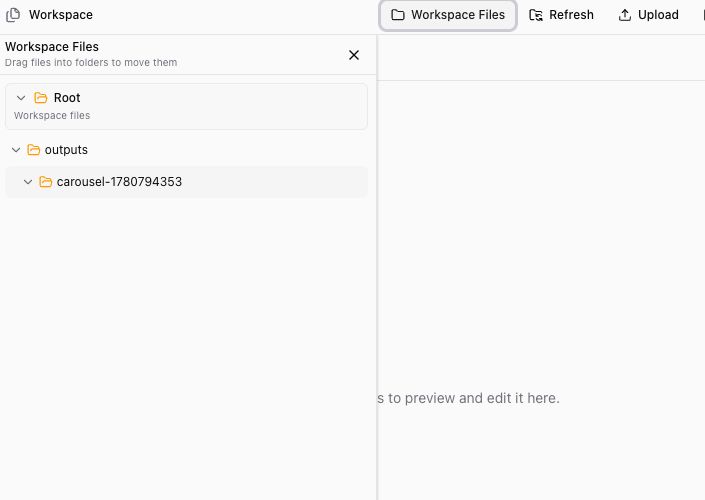
Open Workspace Files
Open Workspace or Workspace Files from a Joule session when you want to inspect files. The left side of the file area shows folders and files. The main preview area shows the selected file when a preview is available.
You may also see controls such as Refresh and Upload:
- Use Refresh when Joule just created or changed files and the list has not updated yet.
- Use Upload when you want to add source material for the session.
- Open folders, such as an
outputsfolder, to look for generated deliverables.
If a file is not visible yet, wait for Joule to finish the step it is working on, then refresh the file list.
Preview files when available
Joule workspace previews can support many common output types, including images, PDFs, Word documents converted to preview PDFs, audio, video, spreadsheets, presentations, standalone HTML documents, Markdown, JSON, and text-like files.
If a preview opens, use it to check the file before you download or share it. Look for:
- Whether the file is the output you expected.
- Whether the formatting, images, tables, or slides look right.
- Whether the content needs revision.
- Whether you should ask Joule to create another format.
If a preview is unavailable, still preparing, too large, empty, protected, corrupted, or unsupported, use the available download option when shown and review the original file locally.
Upload files for Joule to use
Use Upload when you want Joule to work from a file that is not already in the session. Good source files include briefs, notes, outlines, exported reports, product screenshots, brand assets, or reference documents you have permission to use.
After uploading, tell Joule what to do with the file. For example:
- "Use the uploaded brief as the source of truth."
- "Summarize this PDF and turn it into a LinkedIn post outline."
- "Use this screenshot as the visual reference."
- "Compare the uploaded spreadsheet to the campaign plan."
Do not assume Joule will know which uploaded file matters if there are several similar files. Name the file or describe it clearly in your follow-up.
Ask Joule to work with files
You can ask Joule to continue from workspace files in the same session. Useful follow-ups include:
- "Open the newest file in the outputs folder and summarize what changed."
- "Create a shorter version of this report."
- "Turn that outline into a presentation."
- "Move the final files into a folder named final."
- "Create a downloadable version of these outputs."
Keep file requests specific. If the workspace has many files, tell Joule which folder or file you mean.
Keep review in the loop
Workspace files help you inspect the work before it leaves Ampere. Before using a file, check that it opens, matches the request, uses the right source material, and is accurate enough for your use case.
AI outputs can be incomplete or inaccurate, and public-data sources can be partial or unavailable. Treat the workspace as the place to review, revise, and confirm the work before you publish, send, or rely on it.
Was this article helpful?
Related articles
Learn how to review Joule outputs, download files when available, and ask Joule to bundle multiple outputs as a zip.
Understand what happens after you ask Joule for marketing work, from planning to files, review, and follow-up.
Learn what the main areas of the Joule workspace are for before you start reviewing sessions and files.