Tour the Joule workspace
Learn what the main areas of the Joule workspace are for before you start reviewing sessions and files.
Last verified about 2 months ago
The Joule workspace is where you chat with Joule, review its work, open generated files, and continue a marketing session. Use this article when you are new to the workspace and want to know what each area is for before you start clicking around.
You do not need to understand every control on day one. Start with the chat, the composer, and the workspace files area. The rest becomes useful as your sessions get more complex.
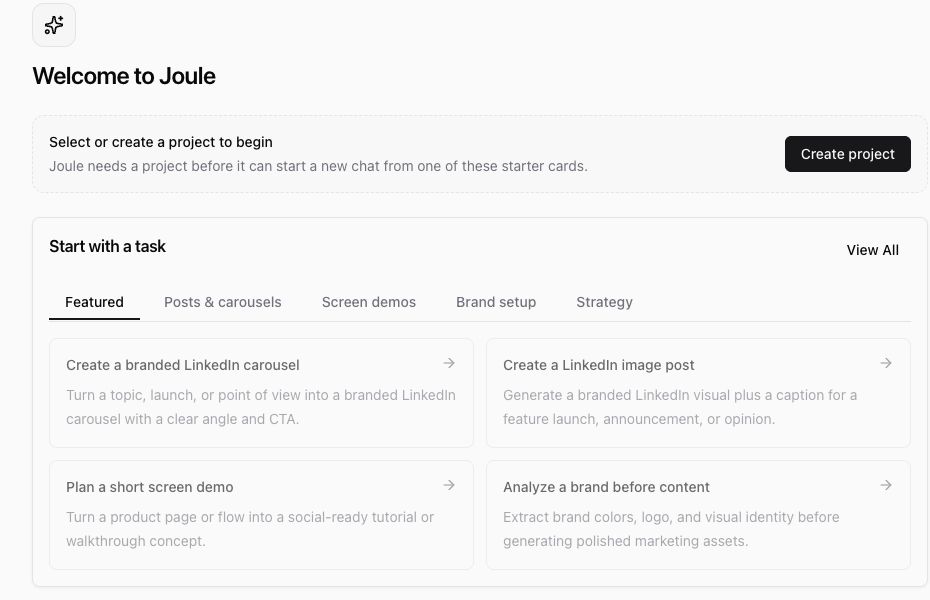
The session list
The left side of the workspace lists accessible chats. Use it to return to previous Joule sessions, review work that needs attention, or start from a selected project when that is required.
If you see a project prompt, select or create the project that matches the work you want to do. Projects help keep related sessions, briefs, files, and reusable context together.
The session header
The top of an open session shows the session title and session-level controls. Depending on the session state, you may see controls for diagnostics, sharing, usage or credits, and the Workspace panel.
Use the title to confirm you are in the right chat before continuing. Use sharing controls only when you mean to give someone else access to the session. Use diagnostics or support details when you are troubleshooting a stuck or failed session.
The chat timeline
The center of the workspace is the conversation with Joule. It shows your messages, Joule's responses, any thinking or work summaries that are visible to you, and suggested follow-ups when Joule has next-step ideas.
Read the latest response first, then scan for anything Joule asks you to confirm. If Joule is waiting for input, answer in the composer instead of starting a new session. If a result is useful but not quite right, ask for a revision in the same chat so Joule keeps the context.
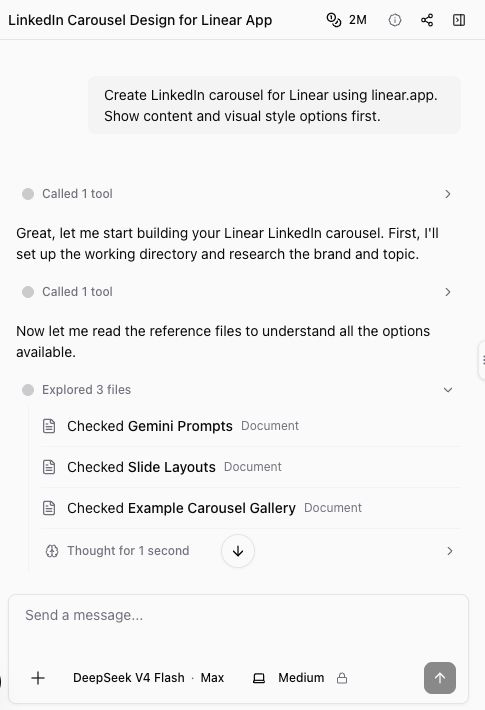
The message composer
The composer is where you continue the session. You can ask a follow-up, paste more context, request a revision, or give Joule the next task.
Good follow-ups are specific:
- "Make the tone more direct and founder-led."
- "Turn this into a 7-slide LinkedIn carousel outline."
- "Create a shorter version for a launch announcement."
- "Use the uploaded brief as the source of truth."
If you see attachment, response, or machine controls, leave them at their defaults unless you know you need to change them. The best first move is usually to describe the marketing outcome clearly.
The Workspace panel
Use Workspace when you want to inspect the files and artifacts created during a session. Joule can create and edit many output types, including documents, spreadsheets, presentations, PDFs, images, audio, video, Markdown, CSV, JSON, and HTML reports.
The workspace can also show browser or preview areas when a session uses them. If a file is available, open it from workspace files to preview it. If the preview is not available or still preparing, use the download option when it is shown and review the original file locally.
What to review before you leave
Before you finish a session, check:
- The latest answer from Joule.
- Any files or outputs Joule created.
- Whether Joule is asking for input.
- Whether the output needs a revision before you use it.
- Whether you should download, save, or share the result.
Joule can help plan and produce marketing work, but you stay responsible for reviewing the output. AI results can be incomplete or inaccurate, and public-data sources can be partial or unavailable. Treat the workspace as the place to inspect and improve the work before it leaves Ampere.
Was this article helpful?