Use voice input to dictate Joule prompts
Learn how to speak a Joule prompt, review the transcript, and send it like a typed request.
Last verified 1 day ago
Use voice input when it is faster to talk through a Joule request than type it. Joule turns your speech into editable composer text, so you can review the transcript before you send the prompt.
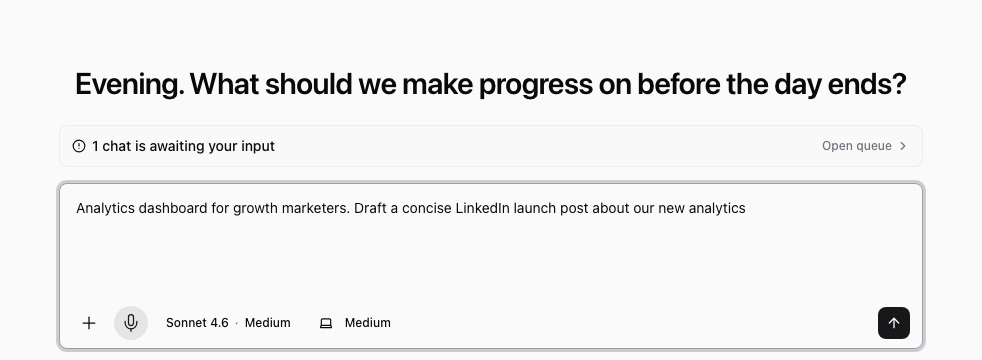
Voice input is for briefing Joule by speech. It does not make Joule speak responses aloud, start a live voice call, clone a voice, or automatically send your prompt.
Where voice input appears
Use the microphone control in the Joule composer on Home or inside a Joule workspace. The control appears when voice input is available for your browser and workspace.
Voice input works best for English prompts. For important names, URLs, numbers, or claims, review the transcript carefully before sending.
Dictate a prompt
- Open Home or a Joule chat.
- Select the microphone control in the composer.
- Allow microphone access if your browser asks.
- Speak the request you want Joule to work on.
- Select the stop control when you are done speaking.
- Review and edit the transcript in the composer.
- Send the prompt when it says what you want.
You can still type before or after dictation. Voice input adds text to the same draft field you use for typed prompts.
What to review before sending
Check the transcript for:
- Product names, customer names, and campaign names.
- URLs, numbers, dates, and pricing claims.
- Any private information you did not mean to include.
- Whether the prompt gives Joule the goal, audience, source material, and expected output.
If the transcript is messy, edit it directly or clear the composer and start again.
If the microphone does not start
Check that your browser allows microphone access for Ampere. If you previously denied permission, open your browser site settings, allow the microphone, then reload Ampere.
Voice input may also be unavailable if the browser does not support microphone capture, your organization cannot start new Joule work because of billing or usage limits, or the transcription provider is temporarily unavailable. In that case, type the prompt and try voice input again later.
Good uses for voice input
Voice input is useful when you want to rough out a longer brief, explain a campaign idea, summarize what changed in a meeting, or capture context while it is fresh. It is less useful for prompts that need exact spelling, long URLs, or carefully formatted data.
Was this article helpful?
Related articles
Learn how to start a first Joule session, what to include in your prompt, and what to review next.
Learn how to ask Joule for images, visual concepts, and image revisions inside a chat.
Learn how to open, review, revise, save, and download files that Joule creates in the workspace.