Understand the Usage dashboard
Learn where to track credit balance, included usage, historical consumption, grants, and background AI allowance for your organization.
Last reviewed August 2026
The Usage dashboard shows how your organization is spending credits. Use it to check the shared balance, see what used credits during the current billing period, review historical consumption, and understand how credits were added to the account.
Open Settings from the app sidebar. Under Organization, select Usage when you want more detail than the credit badge can show.
Before you start
Usage is an Organization setting. You need to be in the Organization whose credit activity you want to review.
Organization owners and billing admins can see the detailed historical usage and credit grant tables. If you do not have billing access, Ampere still explains that those details are available to an owner or billing admin.
Start with the shared credit balance
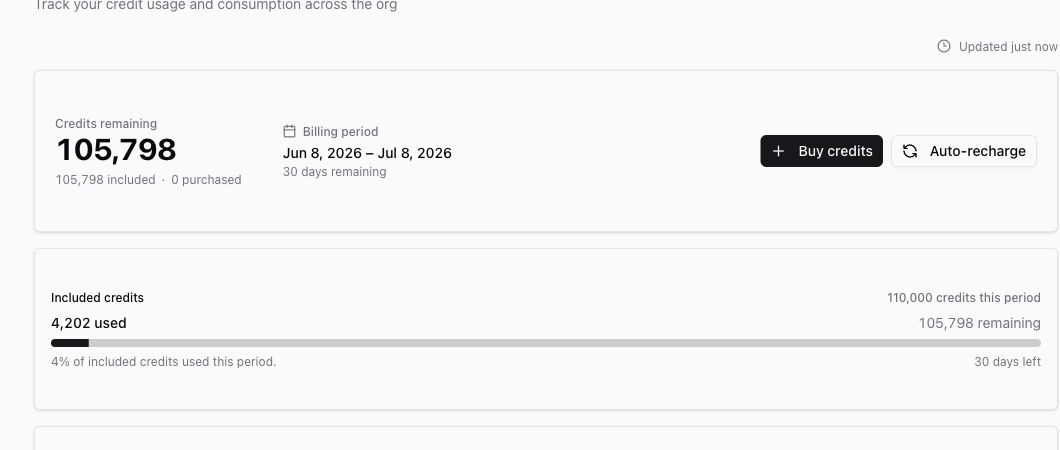
The top card shows Credits remaining for the organization. The balance is split into included credits and purchased credits so you can see how much of the shared pool comes from the current subscription period and how much comes from top-ups or auto-recharge.
The same card shows the current billing period. If you have billing access and the organization has an active subscription entitlement, the card also links to Buy credits and Auto-recharge from the Billing page.
The included-credit progress card shows how many included credits have been used this period, how many remain, the percent used, and the number of days left in the period.
Read current-period usage
Current-period usage ranks where credits have gone during the billing period. It combines rows for agent chat, AI Tools, workflows, and browser sessions when those categories have activity.
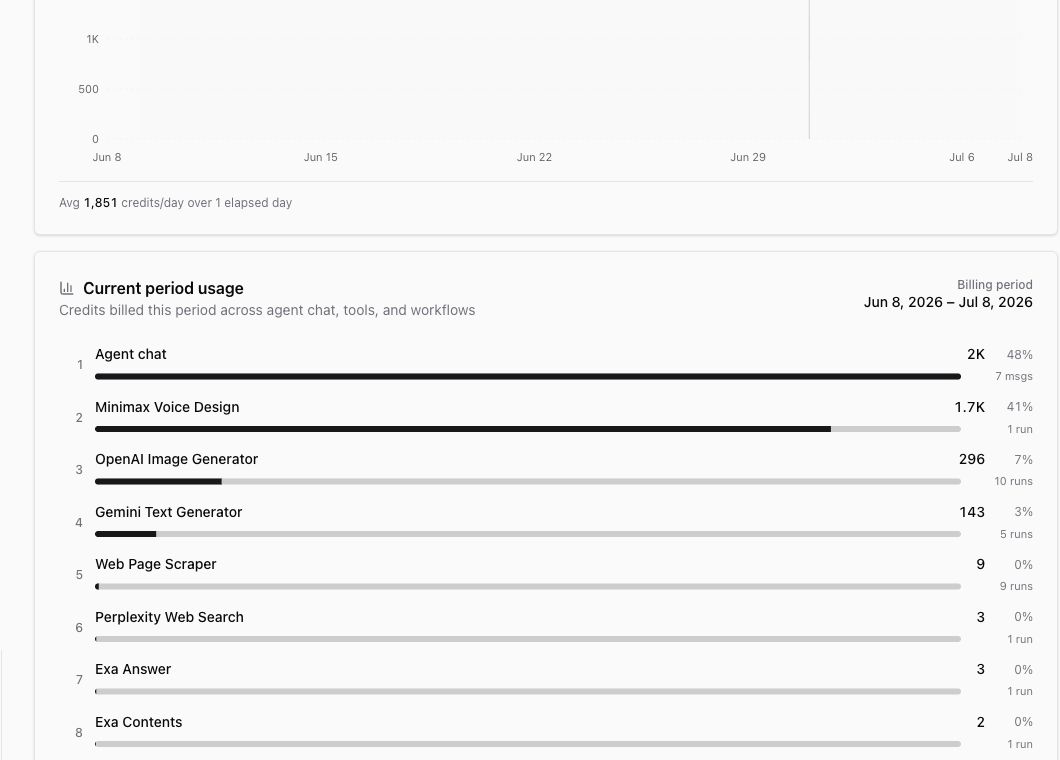
Each row shows the source, the credits used, the share of current-period usage, and the count of messages, runs, or sessions. The highest-credit rows appear first so you can quickly spot the main drivers.
Agent chat shows chat-turn usage only. When Ampere or another agent calls AI Tools or workflows during a chat, those tool and workflow runs are billed separately and appear as their own line items.
Review daily and historical usage
The daily usage chart helps you see credit activity over time in the current period. You can switch between short ranges and the full period to understand whether usage is steady or concentrated on specific days.
Historical usage lists individual credit consumption events. Use this table when you need to answer questions like which AI Tool ran, how many credits it used, what type of activity it was, and when it happened.
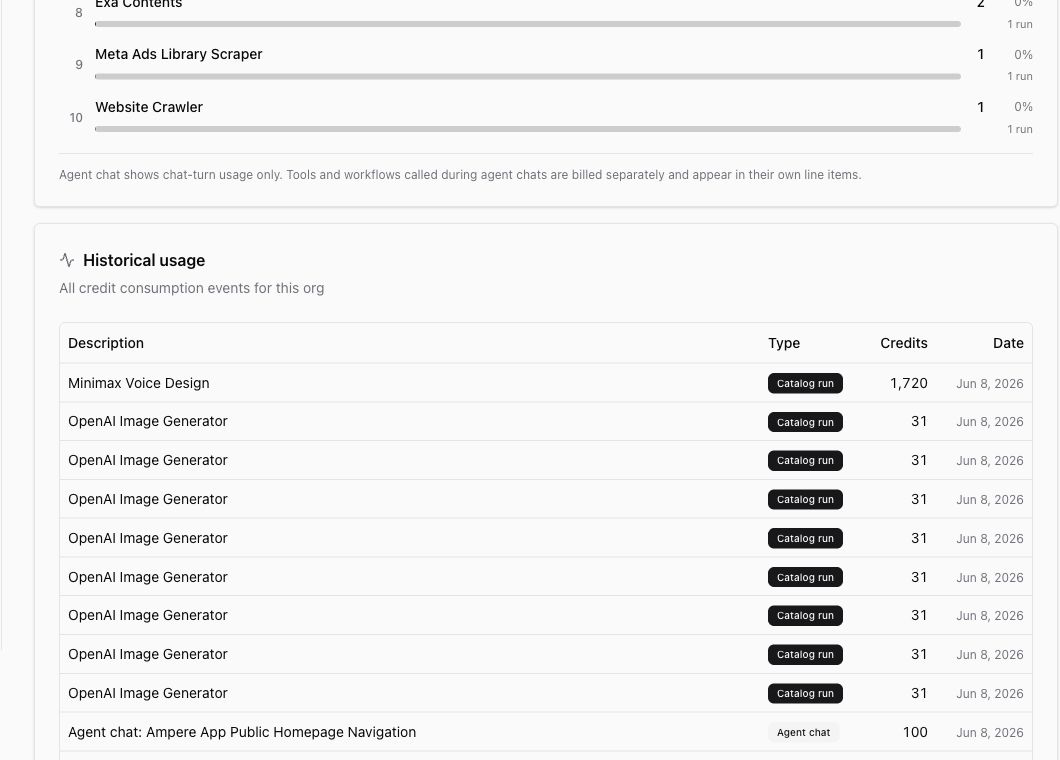
If there are more events than fit on the first page, use Next and Previous to move through the table.
Check credit grants and background allowance
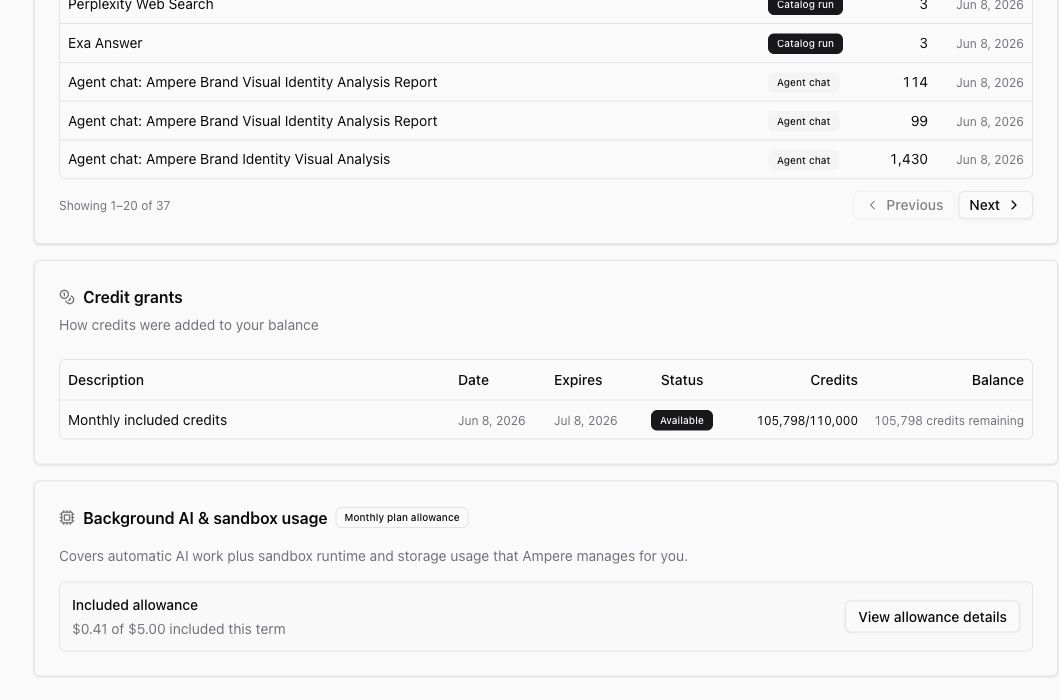
Credit grants show how credits were added to the organization. The table includes the description, grant date, expiration date when one applies, current status, original credit amount, and remaining balance.
The Background AI & sandbox usage card tracks included allowance for automatic AI work plus managed runtime and storage usage that Ampere handles for you. Open View allowance details when you need the full allowance breakdown.
What to do with the dashboard
Use Usage before starting a large batch of AI work, when a teammate asks where credits went, or when the organization is deciding whether to add credits or adjust auto-recharge.
For billing setup and subscription controls, use Billing. For individual AI Tool outputs and run details, open the tool's History tab from the AI Tool page.
Where to go next
For the simpler credit overview, read Understand credits at a high level. To learn who can manage billing controls, read Understand billing admins. To review AI Tool execution history, read Find AI Tool run history.
Was this article helpful?
Related articles
Learn why a balance can show outstanding debt or a locked state and what billing users can do next.
Learn what billing admins can manage, who can add them, and how billing access differs from organization roles.
Learn how to cancel, resume, or reactivate an Ampere subscription and what changes afterward.