Find AI Tool run history
Learn where to review past AI Tool runs, filter by status, sort results, and open execution details.
Last reviewed June 2026
Use AI Tool run history when you want to return to work you already started, check whether a run finished, compare recent attempts, or reopen a result without running the tool again.
Run history is available on each authenticated AI Tool page. It is scoped to your current organization and to the specific AI Tool you are viewing, so an OpenAI Image Generator history page only shows OpenAI Image Generator runs for that organization.
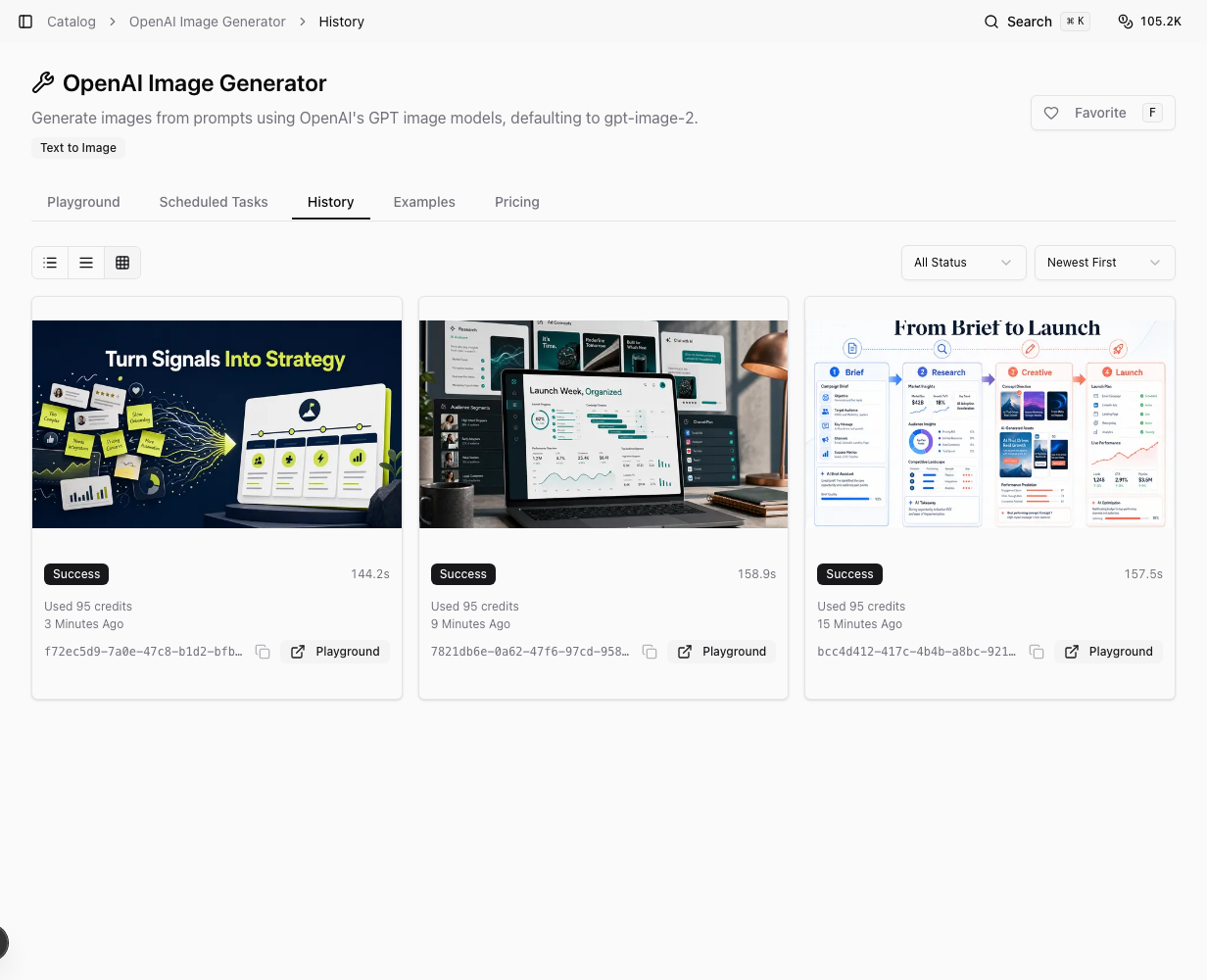
Open an AI Tool's history
- Open AI Tools & Workflows from the app catalog.
- Select the AI Tool you want to review.
- Open the History tab.
- Use the view controls to switch between compact, expanded, and card layouts.
- Use All Status to filter by run state.
- Use Newest First to change the sort order.
If the tool has not been run in your organization yet, the page shows No executions yet with a button to run your first execution.
What you can review
History rows can show the run status, when the run started, duration when available, a preview of the output, the execution ID, and actual credits used after the billing record is available.
The status filter can narrow the list to runs such as running, success, failed, pending, canceled, suspended, or waiting. The sort menu can order the list by newest, oldest, fastest, or slowest.
Selecting a run opens its detail sheet. Depending on the run and output type, the detail view can include a preview, downloadable files, timeline, input, output, and supporting run details. Use this when you need to inspect what went into a run or recover a result from an earlier attempt.
Review history without spending credits
Browsing history, opening past run details, and reviewing saved outputs do not spend credits. Starting a new AI Tool run can spend credits, and completed run details may show the exact credits used after Ampere records the usage.
If available credits reach zero, new AI runs pause until your next reset or until credits are added, but your existing history, settings, and saved work stay accessible.
If you cannot find a run
Confirm that you are in the right organization and on the same AI Tool that created the run. History is not a single all-tools activity feed; each AI Tool has its own History tab.
If you changed the status filter, return it to All Status. If the list is still empty, the tool may not have any runs in the current organization yet.
Was this article helpful?
Related articles
Learn what public-data AI Tools can return, why results vary, and how to review caveats before you act.
Save AI Tools you use often, filter the catalog to favorites, and remove a favorite when your workflow changes.
Learn how to search, filter, sort, and choose AI Tools from the authenticated Ampere catalog.