Add Project files
Attach source files to a Project so Ampere can use the right references for related sessions and outputs.
Last verified 7 days ago
Add Project files when you have source material that should travel with a Project: launch notes, research summaries, approved copy, product screenshots, slide decks, spreadsheets, PDFs, or brand references.
Project files work with the Project brief, the Project context field on the same tab. The brief tells Ampere what matters; files give Ampere source material to inspect when a later session needs it.
Before you start
- You need a Project to hold the files. If you don't have one yet, create a Project first.
- Adding files on the Project page comes with paid plans. On the Free Plan, the Project page shows Editing Projects comes with paid plans. You can review the Project there, but you need to upgrade to a paid plan to add documents.
Add files to a Project
- Open Projects from the app sidebar.
- Open the Project that should hold the files.
- Stay on the Context tab.
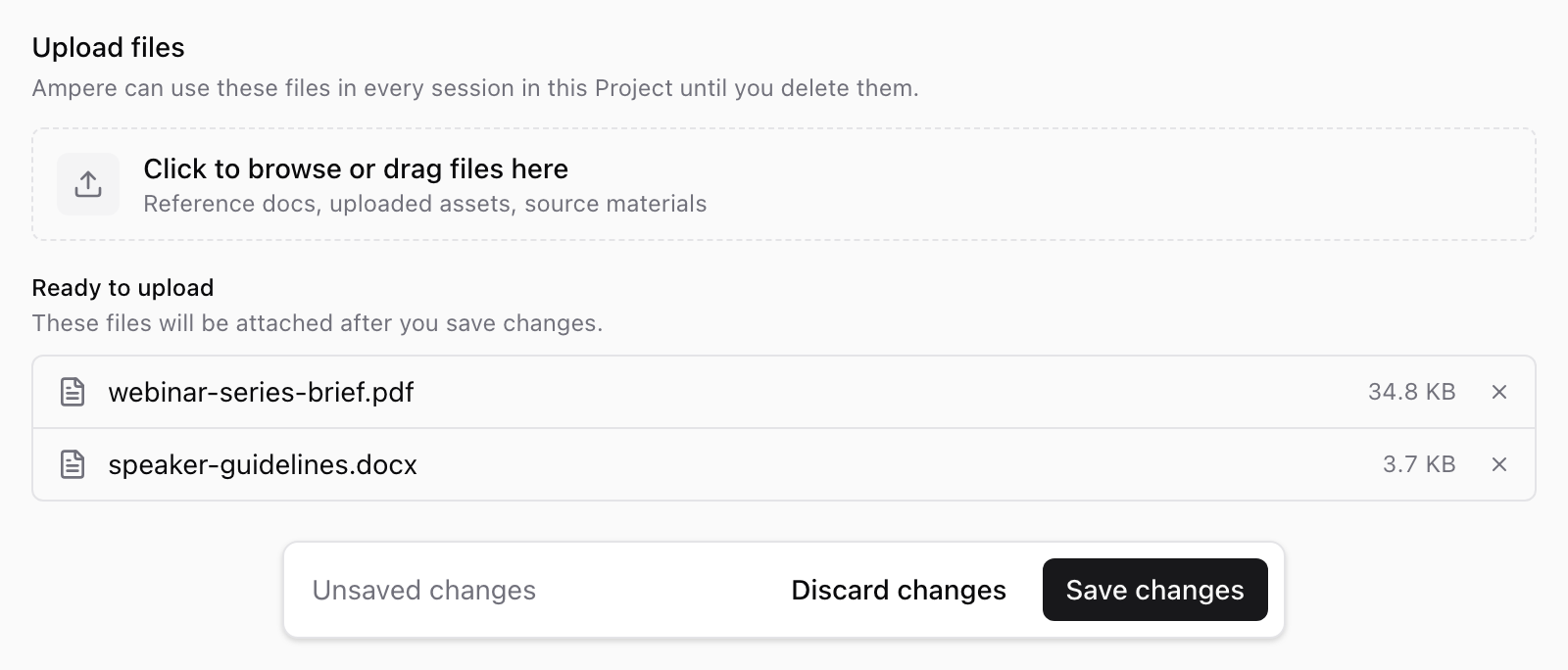
- In Upload files, select Click to browse or drag files here, or drag files onto that area.
- Choose one or more supported files.
- Review the Ready to upload list. To leave a file out, select the × (Remove staged file) next to it.
- Select Save changes in the bar at the bottom of the screen, or press Cmd+S on a Mac or Ctrl+S on Windows.
The Unsaved changes bar appears as soon as you add a file, and the Context tab shows a dot until you save. To drop everything you changed since your last save, including files you added, select Discard changes.
Confirm the file is attached
After saving, Ampere shows Project settings saved. and your files move to Already uploaded. Each file shows its status and the date it was saved. Select Open to view the file on the Assets tab.
Ampere can use your uploaded files in every session in the Project until you delete them. To remove a file from the Project, select the trash button (Remove saved file), then select Delete item. Removing a file can't be undone.
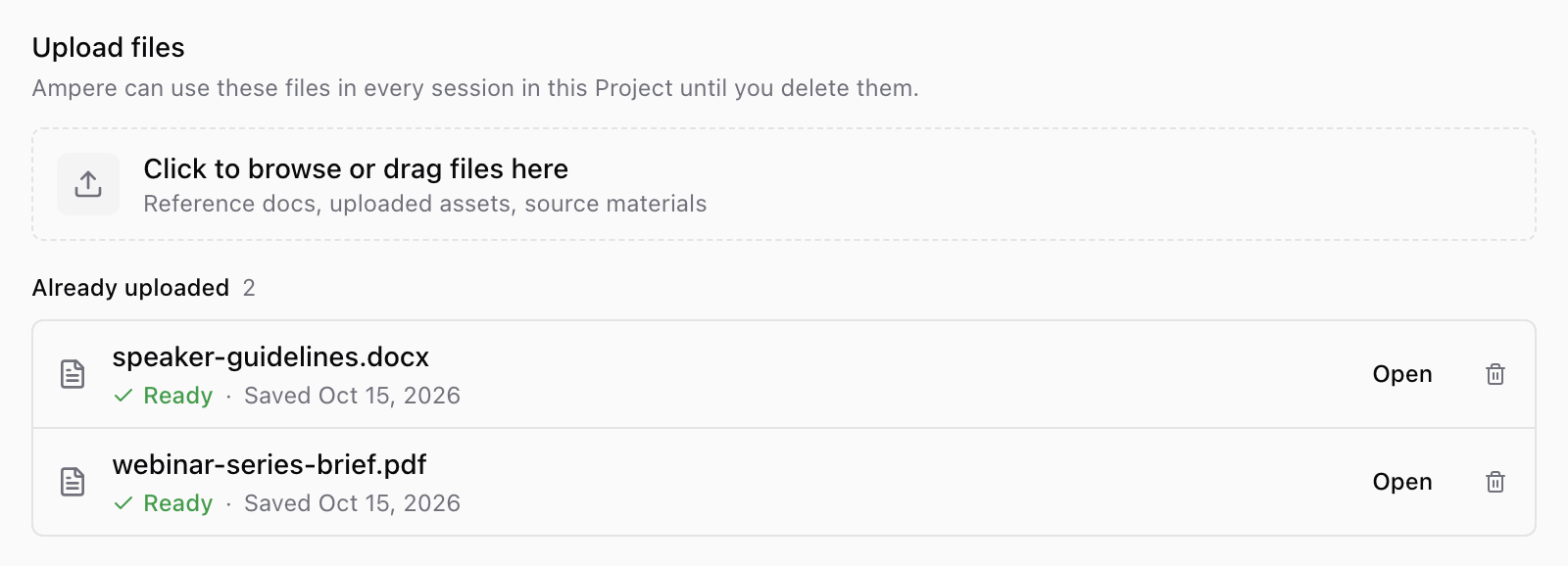
New files show Preparing while Ampere gets them ready for sessions, then Ready. You can keep working while that finishes.
| Status | What it means | What to do |
|---|---|---|
| Preparing | Ampere is still getting the file ready for sessions. | Keep working. The status changes on its own. |
| Ready | Sessions in this Project can use the file. | Nothing. The file is ready. |
| Summary failed or File failed | Ampere may not be able to read the file in sessions. | Remove the file and upload it again. |
| Blocked | Ampere can't prepare the file right now, for example when your Organization has no credits available. | Check what happens when credits run out, then remove the file and upload it again. |
The Project header also shows how your files are doing: Preparing while files are still being prepared, or a chip such as 1 file failed when a file needs attention. Select the chip to jump to the file list. The same chip appears next to the Project on the Projects page, where selecting it opens the Project.
If a file can't be added, a message under the upload area explains why, such as an unsupported file type or a file over the size limit. Export it to a supported format or make it smaller, then add it again. If a file you added can't be saved, Ampere says so and keeps it under Ready to upload, so you can select Save changes to try again.
Supported Project file types
Project files support these extensions: .txt, .md, .markdown, .mdx, .html, .htm, .rtf, .docx, .pptx, .xlsx, .pdf, .png, .jpg, .jpeg, .webp, and .svg.
The default per-file limit is 25 MiB. Legacy .doc and .ppt files are not accepted as Project context files; export them as .docx, .pptx, PDF, or another supported format before uploading.
Only upload files your team is allowed to use for the Project. If a file should guide future work in this campaign, client, product, launch, or workstream, save it on the Project. If it is only needed once, attach it to the current prompt instead.
Was this article helpful?
Related articles
Create a project brief so Ampere has the goals, audience, voice, and guardrails for related marketing work.
Learn where saved AI avatars live, what their status means, and how to reuse them from the AI Avatars library.
See the 22 reusable brand and market report kinds Ampere can build, save, and reopen as Project Assets.