Use custom voices
Learn how to create, manage, preview, archive, restore, and reuse custom voices in Ampere.
Last reviewed August 2026
Custom voices are reusable voice assets for text-to-speech work in Ampere. They help your team keep voiceovers, narration, and dialogue more consistent across campaigns without choosing a new voice every time.
Use the Custom Voices page to create a voice, preview saved samples, see whether a voice is available in Ampere, and open a compatible text-to-speech workflow with that voice selected.
Create a custom voice
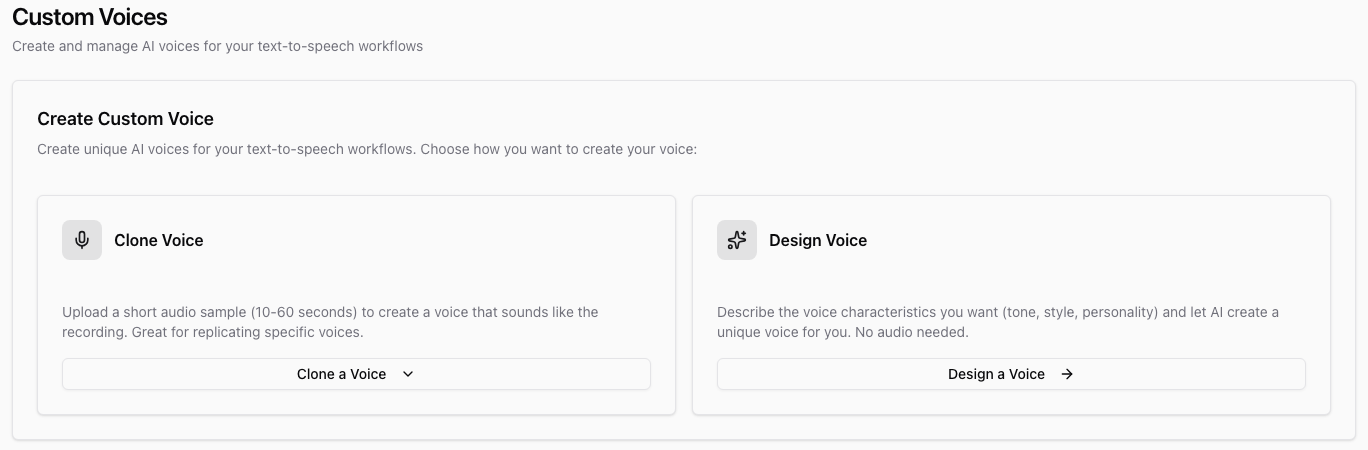
Open Custom Voices from the app library. The Create Custom Voice section gives you two starting points:
- Clone Voice lets you upload a short audio sample and choose a supported voice-clone workflow.
- Design Voice lets you describe the tone, style, and personality you want without uploading audio.
Use voice source material only when your team has the right to use it. For cloned voices, choose a clear audio sample. For designed voices, describe the speaking style you want in practical terms, such as tone, pace, accent, energy, and use case.
When the creation workflow finishes successfully, Ampere saves the voice in your organization's custom voice library. Voices that are promoted for reuse show Available in Ampere.
Read the voice table
The Your Voices table separates active and archived voices. Use the tabs to switch between them and the All Types filter to focus on cloned or designed voices.
Each active row shows:
- the voice name and description
- whether the voice is cloned or designed
- the provider
- the voice ID
- usage count
- last used and created dates
- badges for Ampere availability, project context, and sharing
If a saved voice has a preview sample, use the play button in the row to listen before reusing it.
Reuse a custom voice
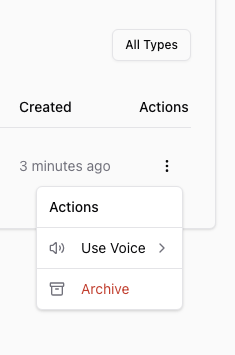
Open the row actions menu and select Use Voice. Ampere opens a compatible text-to-speech workflow with the selected voice ready to use, and copies the voice ID for convenience.
Use custom voices when you want a consistent narrator, spokesperson, brand voice, or character voice across related assets. Review the generated audio before using it externally, especially when a voice is new or the script is sensitive.
Archive or restore voices
Archive a voice when your organization no longer wants it available in active voice pickers. Archived voices move to the Archived tab and can be restored later.
Restoring a voice returns it to the active list when the voice can be made available again for reuse. If a voice is no longer appropriate for a campaign or client, keep it archived instead of reusing it by mistake.
Was this article helpful?
Related articles
Create a project brief so Ampere has the goals, audience, voice, and guardrails for related marketing work.
Learn where saved AI avatars live, what their status means, and how to reuse them from the AI Avatars library.
See the 22 reusable brand and market report kinds Ampere can build, save, and reopen as Project Assets.