Delete an organization
Learn when organization deletion is available, why billing must be canceled first, and what to review before deleting.
Last reviewed August 2026
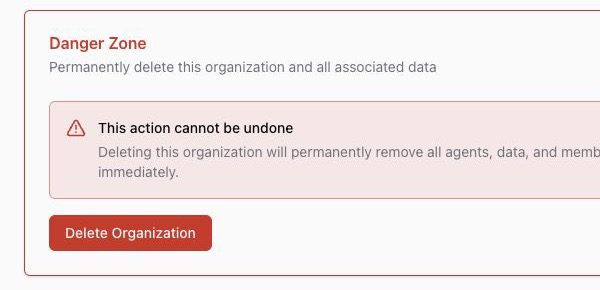
Only organization owners can delete an organization. Deleting an organization is permanent and removes organization data, agents, and member access.
If the organization has an active subscription or billing state that must be resolved, cancel or settle billing first. Do not use organization deletion as a way to bypass subscription, invoice, debt, or credit issues.
Check that you are an owner
Open Settings > Organization > General. The Danger Zone and Delete Organization control appear only for owners. If you do not see the section, ask an owner to review the request.
Cancel or resolve billing first
Before deleting, open Settings > Organization > Billing and confirm the subscription and outstanding usage state. If a subscription is active, manage it in the billing portal. If usage is debt-locked, resolve the outstanding usage before relying on deletion.
This protects the organization from losing access to data before billing responsibilities are handled.
Review what will be removed
Deletion permanently removes the organization and its associated data. Members lose access immediately.
Before continuing, review:
- Project context and saved Project Assets.
- Ampere sessions, generated files, and Workspace outputs.
- AI Tool run history and scheduled tasks.
- Team membership and organization settings.
- Billing records you may need to keep outside Ampere.
Export or save anything your team needs before deleting.
Confirm deletion
- Open Settings > Organization > General.
- In Danger Zone, select Delete Organization.
- Type DELETE exactly as shown. The confirmation is case-sensitive.
- Select Delete Organization in the confirmation dialog.
After deletion succeeds, Ampere redirects away from the deleted organization.
If deletion fails
Read the error message and check billing, role, or organization state. If the issue is billing-related, open Settings > Organization > Billing first. If you still cannot delete an organization that should be deletable, contact support with the organization name and a description of the blocker.
Was this article helpful?
Related articles
Learn how to cancel, resume, or reactivate an Ampere subscription and what changes afterward.
Learn how to update your Organization's logo, name, and description from Organization settings in Ampere.
Learn where to delete your Ampere account, what to check first, and why the action is permanent.