Understand your current organization
Learn how the current Organization affects shared work, settings, team access, billing, and usage in Ampere.
Last reviewed August 2026
Your Organization is the top-level customer environment for your team in Ampere. It controls the organization name and logo, team access, billing and usage, connected accounts, projects, uploaded files, saved assets, scheduled tasks, and AI Tool runs.
Use this article when you want to understand what the current Organization affects, especially if you work with more than one team or expected to see different shared data.
What the current Organization means
The Organization selected in the app is the context Ampere uses for shared work. When you open Home, Sessions, AI Tools, Projects, Scheduled Tasks, Library, or Settings, Ampere loads information for the active Organization.
That context matters because most shared product areas are Organization-scoped. Projects, uploaded files, AI Tool executions, Scheduled Tasks, AI avatars, custom voices, billing, usage, and connected accounts belong to an Organization.
Some records also track the person who created the work. That lets Ampere show team-wide activity while still distinguishing individual work where the product needs it.
Where organization details appear
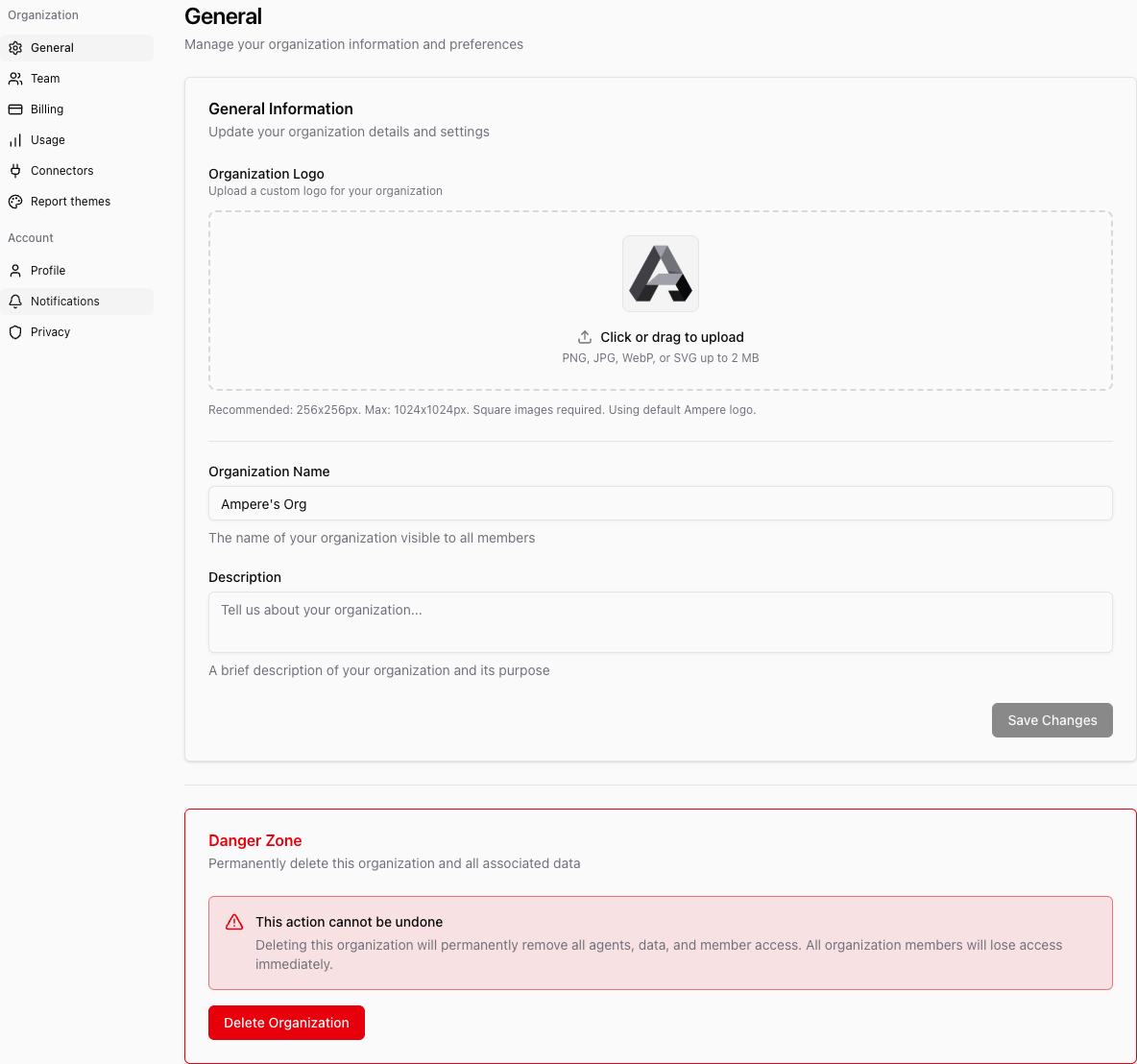
Open Settings, choose Organization, and then select General to review the current Organization's identity.
The General page includes the Organization logo, name, and description. These details help members confirm they are working in the right Organization.
Organization updates are available to the roles that can manage organization settings. If you can view the page but cannot make a change, ask an organization owner or admin for help.
If you belong to more than one organization
Ampere tracks a current organization for your signed-in session and remembers it across page reloads. On app load, Ampere validates that the selected organization still belongs to your account and can choose a valid organization when one is available.
Before starting team work, check the organization name in the sidebar. This is especially useful before running an AI Tool, uploading project files, changing settings, reviewing usage, or inviting teammates.
If you expected to work in another existing organization but do not see its shared data, confirm that you accepted the invitation with the same email address you used to sign in. Ask an owner or admin of that Organization to invite you again if needed.
Current limits
New accounts get their first organization prepared during signup. Additional organization creation is not a normal self-service flow in the current app.
If your team needs a separate Organization, contact Ampere support with the organization you are currently using and the Organization you expected to access. Do not create duplicate team data inside the wrong organization while you wait.
What to check next
If the organization is correct but you cannot access the right team controls, review Organization roles. If your issue is billing access specifically, read Understand billing admins.
Was this article helpful?
Related articles
Learn when organization deletion is available, why billing must be canceled first, and what to review before deleting.
Invite teammates to your Ampere Organization, choose their role, and track pending invitations.
Learn how to update your Organization's logo, name, and description from Organization settings in Ampere.