Update your organization profile
Learn how to update your Organization's logo, name, and description from Organization settings in Ampere.
Last reviewed August 2026
Use Settings > Organization > General to review or update the profile details for the current Organization. These details help teammates confirm they are working in the right Organization.
Organization admins and owners can update the organization name, description, and logo. If you can view the page but cannot save changes, ask an organization owner or admin for help.
Before you start
Check the organization name in the sidebar before changing settings. Profile updates apply to the current Organization, not just to your personal account.
For logo uploads, use a PNG, JPG, WebP, or SVG file up to 2 MB. Square images are required. Ampere recommends 256 by 256 pixels and accepts images up to 1024 by 1024 pixels.
Update the organization name or description
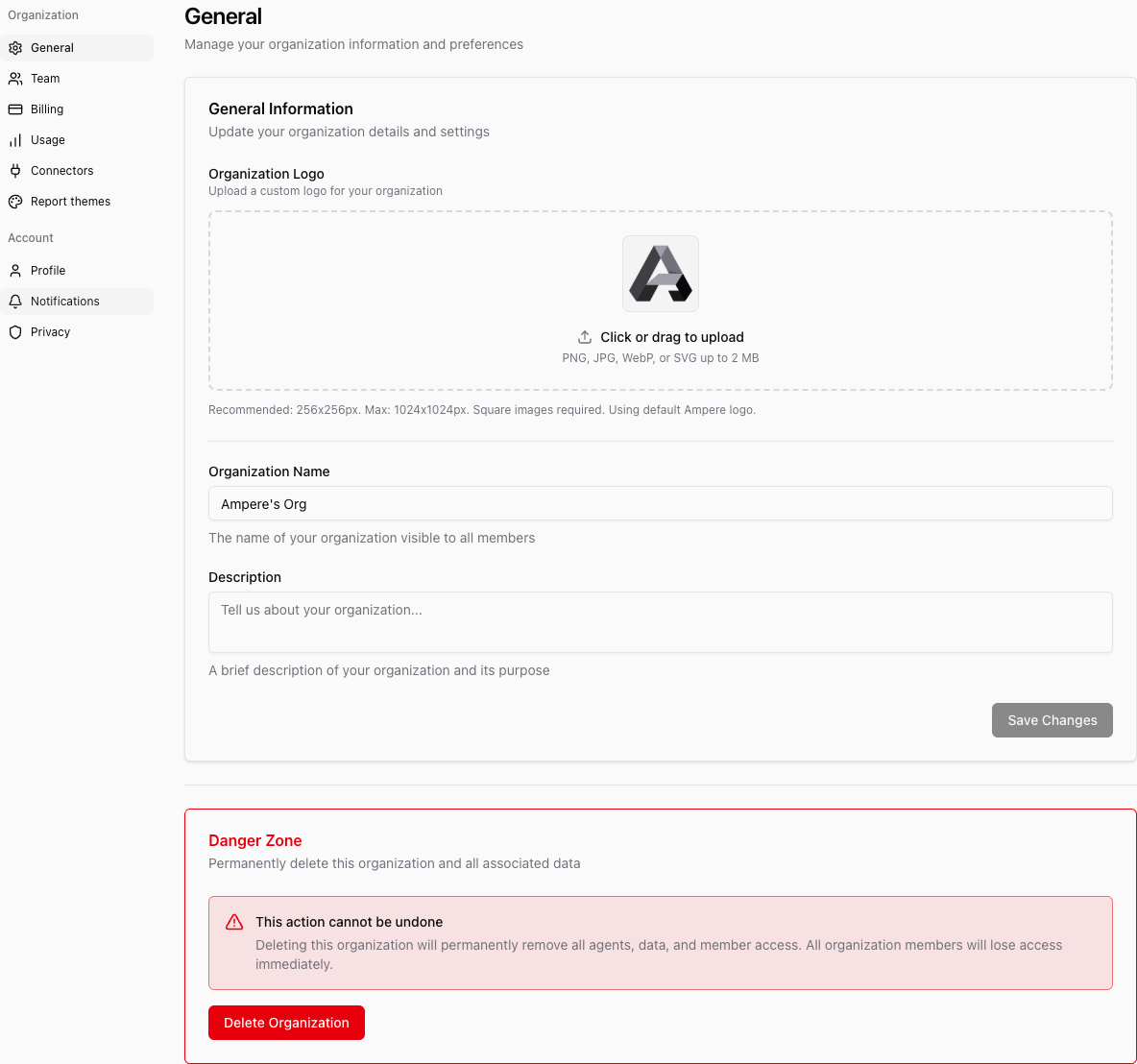
- Open Settings from the app sidebar.
- In the Organization section, select General.
- In General Information, edit Organization Name or Description.
- Select Save Changes.
The Organization name is visible to all members of the Organization. Use a clear name your teammates will recognize in navigation, settings, usage, billing, and shared work areas.
Update the organization logo
- Open Settings from the app sidebar.
- In the Organization section, select General.
- In Organization Logo, select the upload area or drag a logo file onto it.
- If Ampere asks you to crop the image, adjust the crop so the logo is square.
- Finish the upload and wait for the logo to save.
When the logo update succeeds, Ampere refreshes organization data so the new logo can appear anywhere the organization identity is shown.
Remove or replace a logo
If your organization already has a custom logo, use the logo controls under Settings > Organization > General to remove it or upload a replacement.
When no custom logo is saved, Ampere uses the default Ampere logo in the organization header and settings preview.
If saving does not work
Check that you are in the correct organization and that your role can manage organization settings. Only admins and owners can update organization details.
For logo issues, confirm the file type, file size, and dimensions. If the image is not square, use the crop step when Ampere offers it. If the save still does not complete, try again with a smaller square image.
Where to go next
To understand what the current Organization controls, read Understand your current organization. To review role differences, read Organization roles.
Was this article helpful?
Related articles
Learn when organization deletion is available, why billing must be canceled first, and what to review before deleting.
Invite teammates to your Ampere Organization, choose their role, and track pending invitations.
Learn how the current Organization affects shared work, settings, team access, billing, and usage in Ampere.