Invite teammates
Invite teammates to your Ampere organization, choose their role, and track pending invitations.
Last verified about 1 month ago
Invite teammates when another person should work inside the same Ampere organization. Owners and admins can send invitations from Team settings, choose the teammate's organization role, and review pending invitations before they are accepted.
Before you start
You need an Owner or Admin role in the organization. Members and Viewers can see team context only where their role allows it, but they cannot send organization invitations.
Have the teammate's email address ready and choose the access level before you send the invitation. Ampere invitation roles are Admin, Member, and Viewer. The Owner role is managed separately through ownership transfer.
Send an invitation
- Open Settings and then Team.
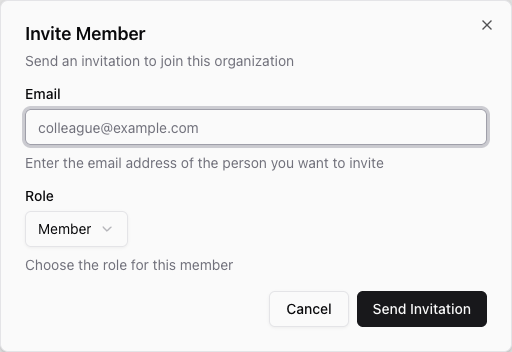
- Select Invite Member.
- Enter the teammate's email address.
- Choose Admin, Member, or Viewer.
- Select Send Invitation.
Ampere sends an invitation email to the address you entered. If the email was recently invited, wait before resending; Ampere uses a short cooldown to avoid duplicate invitation emails.
What the invitee needs to do
The invitee should open the invitation link from their email and sign in or create an Ampere account with the same email address that received the invitation.
If Ampere asks them to accept current legal consent before joining, they should complete that step first. After the invitation is accepted, Ampere adds them to the organization with the role you selected and opens the app in that Organization.
Track pending invitations
Team settings can show pending invitations with the invited email address, role, delivery status, invited date, expiration date, and actions. Delivery status can show whether the email was sent, failed, is still pending, or is unknown.
Invitations expire after seven days. If the wrong person was invited or the invite is no longer needed, an Owner or Admin can revoke it from Team settings.
Troubleshooting
If the invitee cannot accept the invitation, check that they are signing in with the same email address that received the invitation. A different email address will not match the invitation.
If the invitation expired, send a new invitation. If delivery failed or the teammate did not receive the email, confirm the email address, check spam or quarantine filters, and retry after the resend cooldown if needed.
Where to go next
For a role overview, read Organization roles. For a broader access reference, read Permissions matrix. If your team uses more than one Organization, read Multiple organizations.
Was this article helpful?
Related articles
Learn how the current Organization affects shared work, settings, team access, billing, and usage in Ampere.
Learn organization roles in Ampere with product-grounded steps, current limits, and where to go next.
Compare Owner, Admin, Member, and Viewer permissions for organization access, invitations, billing, and shared Ampere sessions.