Sign up and create your organization
Learn how to create an Ampere account, verify your email, start on the Free Plan when eligible, and reach your first Organization.
Last verified 15 days ago
Create an Ampere account when you are ready to start using Ampere. During signup, Ampere creates your user account and prepares your first Organization automatically.
Your Organization is where shared work lives: projects, uploaded files, AI Tool runs, scheduled tasks, usage, billing, and team access all belong to it.
If your account is eligible, you can start on the Free Plan with no card required. Ampere sets up your Brand memory, then completes up to 4 Free tasks for your brand, within the usage the Free Plan includes. You can also start with a paid plan instead.
Before you start
Use an email address you can access. Ampere sends email verification during signup, and temporary or disposable email addresses are not accepted.
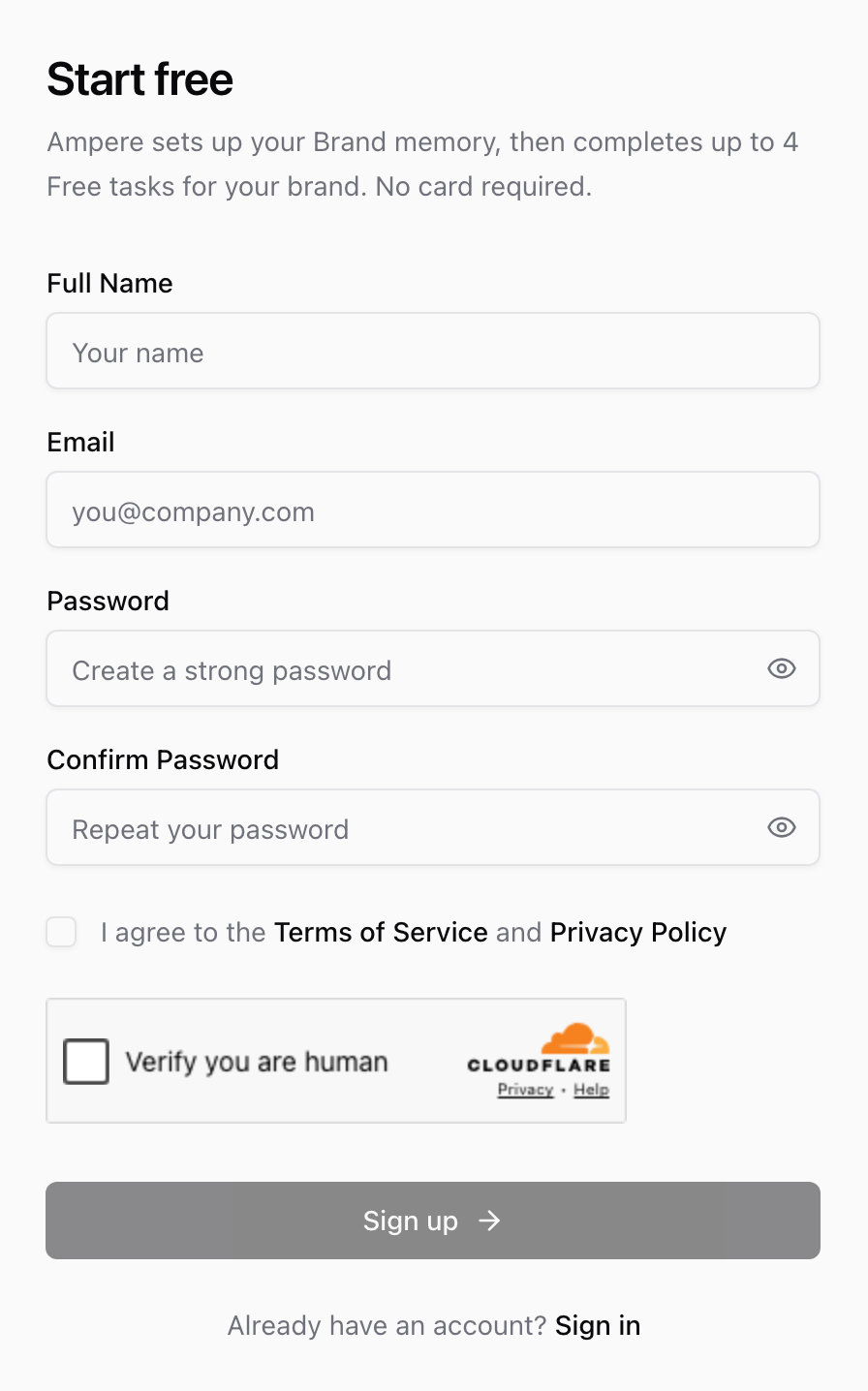
For email and password signup, your password must meet the visible password requirements: at least 8 characters, at least one uppercase letter, at least one lowercase letter, at least one number, and at least one special character. You also need to accept the Terms of Service and Privacy Policy and complete the security check on the form before the Sign up button can continue.
If your team invited you to an existing Organization, select Accept invitation in the invitation email, then select Sign up on the Sign in to join your team page. On the Join your team on Ampere page, use the email address the invitation was sent to. After you verify it, Ampere opens the Organization that invited you.
Create your account
- Select Start free on the Ampere website, or Sign up on the sign-in page.
- Enter your full name and email address.
- Create and confirm your password.
- Accept the Terms of Service and Privacy Policy.
- Complete the security check.
- Select Sign up.
- Check your email and follow the verification link.
You may also see a Google sign-up option. Use the method that matches how you want to access Ampere later.
What happens to your Organization
For a new account, Ampere prepares your first Organization automatically after signup. You do not need to create a separate Organization manually before you can start. If you signed up from an invitation, you get this Organization too, but Ampere opens the one that invited you.
If setup is still finishing, you may see a temporary Organization setup screen. The page checks automatically and moves you forward when your Organization membership is ready. You can also select Check again.
Start on the Free Plan
After you verify your email and your Organization is ready, Ampere takes you to the Activate your Free Plan page, unless you signed up from an invitation or chose a paid plan on the pricing page. The Free Plan is for eligible accounts in supported regions that have never had a paid plan, and it needs no payment or card.
- Complete the security check, then select Continue with Free Plan to finish a quick, one-time account check. Some accounts are asked for a text-message code.
- Set up your Brand memory from your website or a short business brief.
- Start your Free tasks during setup or from Home. You can get a LinkedIn content audit, a LinkedIn image post, a LinkedIn carousel, and a LinkedIn text post for your brand, and your results stay saved on Home.
If you're asked for a text-message code, enter a mobile number that can receive texts, including your country code, complete the security check, and select Send code. Then enter the six-digit code and select Verify and continue.
Each person can start one Free Plan, for the first Organization they created and still own. For a new account, that's the Organization Ampere prepares for you at signup. You can't start a Free Plan for an Organization you were invited to, but you can join someone else's Free Plan as a teammate, and joining doesn't use up your own.
If the Free Plan isn't available in your region yet, can't be activated for your account, or is under review, the page tells you and offers Choose a paid plan. You can also select Contact support on the same page.
If you selected Start with Monthly or Start with Annual on the pricing page, the sign-up page opens with Create an account instead of Start free. After you verify your email, Ampere takes you straight to checkout for that plan, without the Free Plan account check.
For everything the Free Plan includes and what comes with paid plans, see Plans and pricing.
After you reach Home
Once setup is complete, Ampere opens the app with your Organization selected. On a paid plan, you can start an Ampere session, create a project, run AI Tools, or invite teammates when your role allows it.
On the Free Plan, Home shows Your Free tasks and how many you've created, and your results stay saved there. You can also invite teammates to share your Free tasks and Brand memory, up to 5 people in total, counting you and any pending invitations. Your own prompts and follow-up questions, 200+ AI tools & skills, Scheduled Tasks, and Monitoring come with paid plans.
If you want to update the Organization name, description, or logo later, open Organization settings. Your Organization details are visible to members of that Organization.
If you cannot continue
If signup does not continue, check that the email address is valid, the password requirements are met, both password fields match, you accepted the Terms of Service and Privacy Policy, and the security check is complete. If the security check doesn't load, check your connection or pause ad blockers for this site, then select Try again. If you created the account but cannot enter the app yet, verify your email and wait for the Organization setup screen to finish.
If you expected to join an existing Organization, confirm that you used the invited email address. If you signed up but aren't in that Organization yet, open the invitation link from your email again while you're signed in. Ask an owner or admin to resend the invitation if the original link expired.
Was this article helpful?
Related articles
Learn the product terms you will see in Ampere, from Ampere and AI Tools to projects, credits, outputs, and organizations.
Understand how Home highlights Ampere sessions that need your input or are ready to review.
Learn where to find recent Ampere product updates and how to scan the What's new feed.