Ship a branded LinkedIn carousel
Learn how to start a branded LinkedIn carousel with Ampere, what context to add, and what to review before posting it.
Last reviewed August 2026
Use the branded LinkedIn carousel starter when you want Ampere to turn a topic, launch, product update, or point of view into a carousel you can review and adapt for LinkedIn.
The starter is best for a focused marketing idea with a clear audience and goal. Ampere can help shape the angle, slide flow, visual direction, and call to action, but you should still review every claim, visual, and slide before posting.
Before you start
You need an Ampere account, access to an organization, and enough credits for the Ampere session and any AI Tools Ampere uses while creating the carousel. You also need a topic and brand source. A website URL, project brief, uploaded file, or saved project context can help Ampere understand the brand and offer.
Have these details ready before you start:
- The topic, launch, feature, or point of view the carousel should cover.
- The brand source Ampere should use, such as your website, selected project, or uploaded brief.
- The target audience.
- The goal: awareness, education, launch support, demand generation, or another specific outcome.
- Any tone, visual, slide count, or review checkpoint you care about.
Start the carousel from Home
- Open Home.
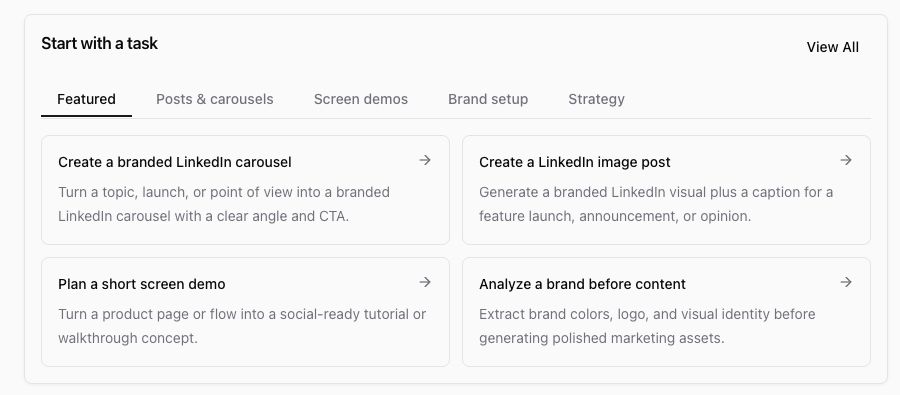
- In Start with a task, choose Create a branded LinkedIn carousel. If it is not visible in the featured row, open Posts & carousels or View All.
- Review the prompt that appears in the composer.
- Replace the bracketed placeholders with your topic, brand source, target audience, and goal.
- Add a checkpoint if you want to review the angle or outline before Ampere creates final assets.
- Select Start with Ampere when the prompt is ready.

Make the starter prompt specific
The starter prompt gives Ampere a useful shape, but the quality of the carousel depends on the context you add. A strong prompt names the output and gives Ampere enough source material to avoid guessing.
For example:
Create a branded LinkedIn carousel about our new onboarding checklist.
Use https://example.com and the selected project brief as the brand source.
Target audience: founders at small B2B SaaS companies.
Goal: education and demand generation.
Before creating final slides, show me the angle, slide flow, and CTA.Keep the task focused. If you ask for research, positioning, visual design, copy, export files, and a full launch plan in one message, the session may become harder to review. Start with the carousel, then ask Ampere for follow-up work in the same session.
What Ampere may ask next
For carousel work, Ampere may ask you to choose or confirm details such as the audience, post objective, content style, or visual style. Answer those questions based on how you plan to use the carousel.
When style options appear, treat the examples as direction-setting previews. The final carousel should still be custom to your brand, topic, objective, and audience.
Review before you post
Before you publish or share the carousel, review it like any other marketing asset:
- Check every factual claim, number, quote, customer reference, and product detail.
- Make sure the visual style fits your brand and the channel.
- Confirm the slide order has a clear hook, useful middle slides, and a specific call to action.
- Open the generated files and confirm the PDF or slide images look correct.
- Ask Ampere to revise the angle, shorten the copy, change the CTA, or regenerate visuals if needed.
AI output can be incomplete or inaccurate, and public web or social data can be partial or unavailable. Use Ampere to move quickly from a blank page to a reviewable carousel, then make the final judgment yourself.
A good first result
A successful first carousel session gives you a concrete draft to react to: an angle, slide flow, copy direction, and downloadable carousel files. It does not have to be final on the first pass. Use follow-up prompts to tighten the hook, adjust the audience, simplify the slides, or make the carousel more on-brand before you post.
Was this article helpful?
Related articles
Learn the product terms you will see in Ampere, from Ampere and AI Tools to projects, credits, outputs, and organizations.
Understand how Home highlights Ampere sessions that need your input or are ready to review.
Learn where to find recent Ampere product updates and how to scan the What's new feed.