Browse the AI Tools catalog
Learn how to search, filter, sort, and choose AI Tools from the authenticated Ampere catalog.
Last reviewed August 2026
The AI Tools catalog is Ampere's library of ready-to-use marketing tools and workflows. Use it when you know the kind of task you want to run, want to compare available tools, or want to find a tool before asking Ampere to do broader work.
This article explains how to browse the catalog. It does not cover filling out inputs or running a tool.
Open the catalog
Open AI Tools from the app navigation. The catalog page shows AI Tool cards with a name, category, short description, and a Use This action.
The catalog can include many kinds of marketing work, such as research, web extraction, text generation, image generation, video, audio, avatar, and voice workflows. The exact count can change as Ampere updates the catalog and makes new tools available.
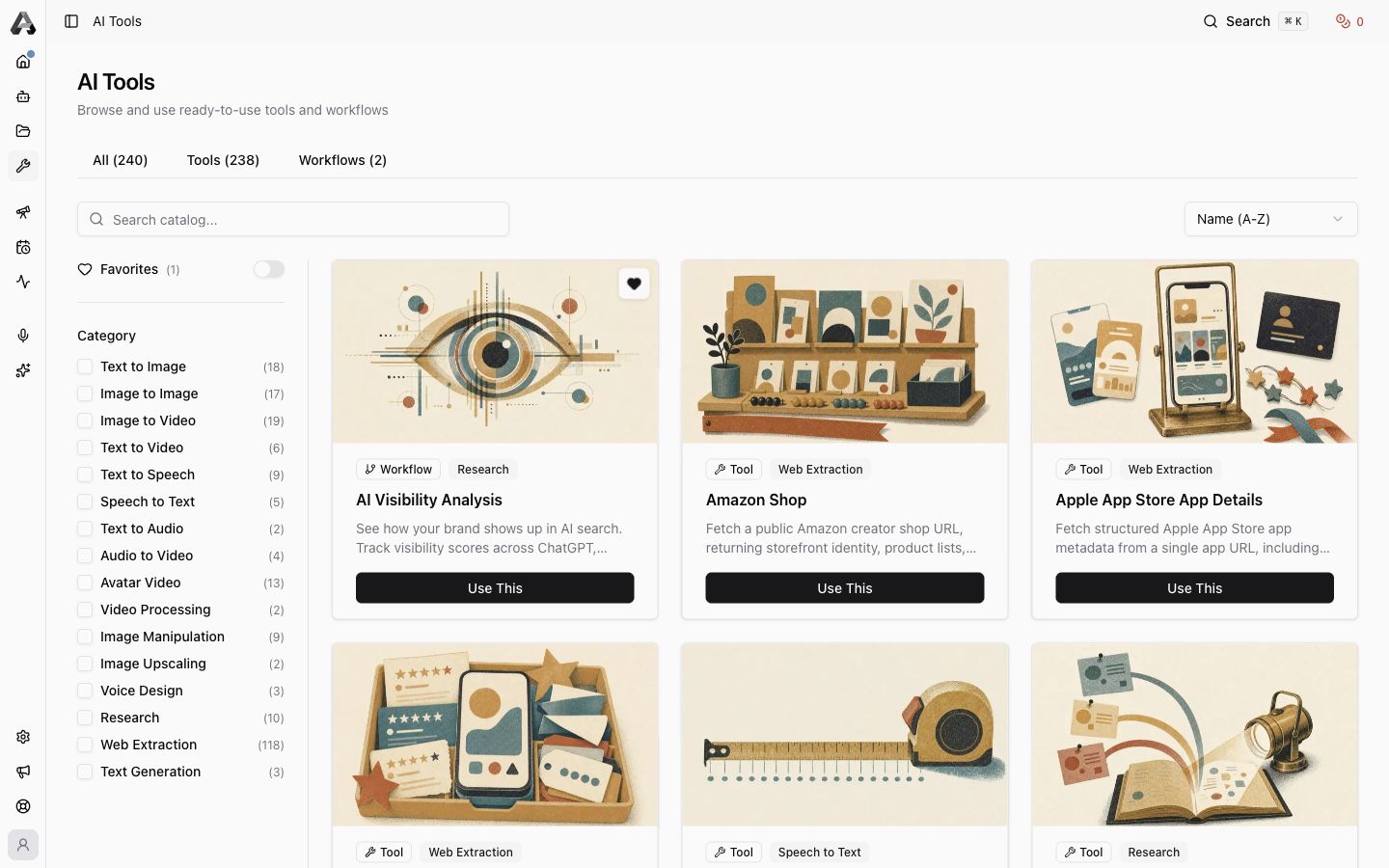
Use tabs to narrow the list
The tabs at the top separate catalog items by broad type:
- All shows the full visible catalog.
- Tools shows individual AI Tools.
- Workflows shows guided, multi-step catalog workflows when available.
Use tabs when you already know whether you want a single tool or a more guided workflow. If you are not sure, start with All.
Search by task, platform, or output
Use search when you have a word in mind. Good search terms include:
- A platform, such as LinkedIn, YouTube, Google, or Reddit.
- An output, such as image, video, transcript, voice, carousel, or report.
- A job, such as reviews, ads, research, scrape, upscale, or analyze.
- A company or data source type, such as app store, company profile, or web page.
Filter by category
Use the category filters when you want to browse a type of work rather than a specific tool name. For example, you might filter to research, web extraction, image generation, video processing, text to speech, or avatar video.
Category counts are there to help you scan the catalog. Treat them as current UI state, not a permanent promise.
Save favorites
Use favorites for tools you expect to run often. Then use the favorites toggle to show only saved tools.
Favorites are useful when your team repeatedly uses the same research, content, media, or extraction workflows.
Sort the list
Use the sort menu when you want a predictable order while browsing. Sorting is helpful after you search or filter, especially when the result list is still long.
Choose a tool to inspect or run
When a card looks relevant, review its name, category, and short description. Use Use This when you are ready to open the tool's run page.
Before running a tool, check the tool details and input fields. Some tools need specific inputs such as a URL, file, prompt, public profile, or account/page identifier. Public-data tools can return partial or unavailable data depending on the source, so review the expected output and caveats before relying on the result.
If you want Ampere to decide which tool to use as part of a larger marketing task, start an Ampere session instead and describe the outcome you want.
Was this article helpful?