AI Tool category reference
Use this reference to understand AI Tool category labels, filters, and when to start from each catalog group.
Last reviewed June 2026
AI Tool categories group the catalog by the kind of marketing work a tool helps with. Use them when you want to browse by outcome instead of searching for a specific tool name.
This reference explains the category labels you may see in Catalog and when to start from each group.
Where categories appear
Open Catalog and look for Category in the filter sidebar. Select one or more categories to narrow the catalog. The sidebar shows categories that currently have visible catalog items in the selected catalog view, so the labels and counts can change as Ampere updates the catalog.
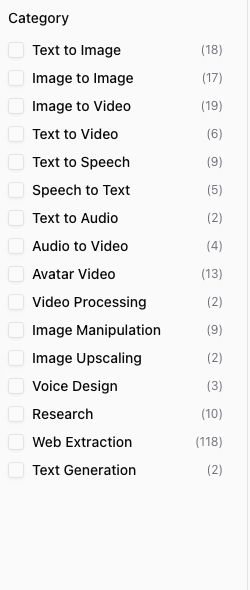
You can combine categories with search, favorites, sort, and the Tools or Workflows tabs.
Category reference
| Category | Start here when you need to |
|---|---|
| Text to Image | Create a new image from a prompt. |
| Image to Image | Transform, restyle, or edit an existing image. |
| Image to Video | Animate a still image into a video. |
| Text to Video | Generate video from a written prompt. |
| Text to Speech | Turn written copy into spoken audio. |
| Speech to Text | Transcribe audio or analyze spoken content. |
| Text to Audio | Generate audio content from written direction. |
| Audio to Video | Use audio to drive motion, sync, or video output. |
| Avatar Video | Create talking-avatar or presenter-style video. |
| Video Processing | Enhance, upscale, or process existing video. |
| Image Manipulation | Make targeted image edits such as background, lighting, object, or product changes. |
| Image Upscaling | Improve image resolution or sharpness. |
| Voice Design | Create or shape voice direction for reusable voice work. |
| Research | Gather search results, market context, competitor context, or AI-visibility insights. |
| Web Extraction | Collect or structure public information from pages, profiles, stores, reviews, ads, or websites. |
| Text Generation | Generate written output from prompts, source material, or structured inputs. |
Choose categories by the job, not the model
Start from the output or source material you need. For example, choose Text to Image when you need a new image, even if you are not sure which image model to use. Choose Web Extraction when you already know the public source you want to collect from. Choose Research when the job is more about finding or synthesizing context.
After filtering, open a few AI Tool detail pages and compare the input fields, expected output, caveats, examples, and Pricing tab when available.
If a category is missing
The catalog only shows categories that have visible items in the current view. If you do not see a category you expected, clear search terms, turn off Favorites, switch back to All, and remove other category filters.
If the category still does not appear, use catalog search with the output, platform, or task name you have in mind. The catalog changes as Ampere updates available AI Tools, so the best starting point can shift over time.
Where to go next
To learn the full browsing flow, read Browse the AI Tools catalog. For help choosing between image, video, audio, and research categories, read Choose image, video, audio, and research AI Tools. To run a selected tool, read Run an AI Tool.
Was this article helpful?
Related articles
Learn where to review past AI Tool runs, filter by status, sort results, and open execution details.
Learn what public-data AI Tools can return, why results vary, and how to review caveats before you act.
Save AI Tools you use often, filter the catalog to favorites, and remove a favorite when your workflow changes.