Understand AI Tool inputs, status, and outputs
Learn what AI Tool input fields, execution statuses, and results mean before and after a run.
Last reviewed August 2026
Every AI Tool page is organized around three practical questions:
- What does the tool need from you?
- What is happening while it runs?
- Where will the output appear?
This article explains those areas so you can read a tool page confidently before and after you run it.
Inputs tell the tool what to work with
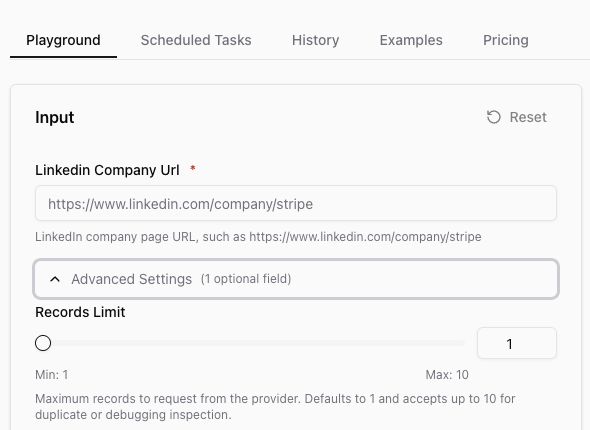
The Input panel is the form for the AI Tool. Each tool has its own fields based on the job it performs.
Required fields are marked with an asterisk. These are the fields you need to fill in before the tool can run. Helper text under a field shows the format or example the tool expects, such as a public profile URL, company page URL, prompt, file, or account/page identifier.
Some tools also include Advanced Settings. These are optional controls for narrowing or adjusting the run. Leave advanced settings at their defaults unless you know you need a different value.
Status tells you what is happening
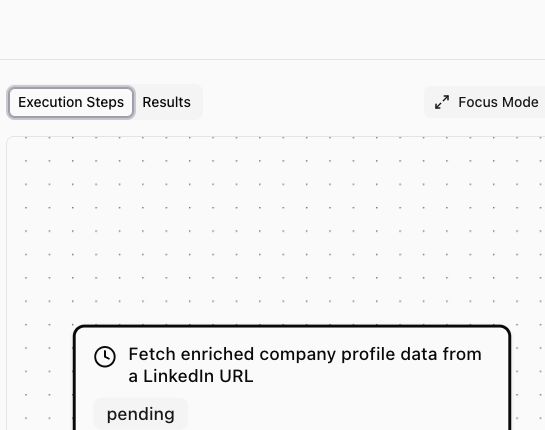
The Execution Steps tab shows the workflow steps for the run. Each step can show a status, such as a step that is still waiting or pending.
Use status as a progress clue, not as a quality rating. A pending step means Ampere has not finished that part of the run yet. Provider-backed tools can take longer when they gather public data, generate media, or wait for an external source to respond.
Outputs appear in Results
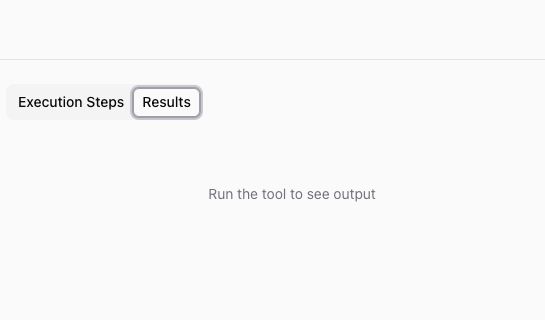
The Results tab is where you review the output after a tool run has something to show. Before you run the tool, this area can be empty.
Depending on the tool, output may include structured data, text, files, media, previews, JSON, or downloads. The exact output format depends on the AI Tool and the input you provided.
Review the output before using it
Always review the output before you use it in a document, campaign, ad, post, or report. AI Tool output can be a strong starting point, but it still needs human judgment.
For public web, social, ads, review, and company-data tools, output can be partial, unavailable, noisy, or incomplete depending on the source. Missing fields do not always mean the tool failed; sometimes the source did not provide that data.
If something looks off
If the tool does not run, check required fields first. Make sure the value matches the helper text and that the source is public or accessible.
If the result is not useful, adjust the input or optional settings and run the tool again. If you are not sure which tool or input to use, start an Ampere session and describe the marketing outcome you want.
Was this article helpful?