Share a Joule session
Control which existing organization members can open, edit, or manage a specific Joule session.
Last verified about 2 months ago
Use Joule session sharing when an existing teammate needs access to one specific chat. Sharing a session is separate from organization roles: organization roles decide someone's overall team access, while session access controls what they can do inside one Joule session.
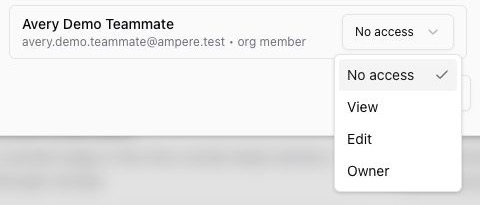
Session access is available from the session list in Chats. Open the session menu, choose Manage Access, then choose the access level for each existing organization member.
Access levels
No access means the teammate does not have shared access to that session.
View lets the teammate open and review the session without continuing the work.
Edit lets the teammate continue working in the session.
Owner lets the teammate manage the session, including sharing access. Keep at least one owner on any session you want the team to keep using.
Who can be shared with
The Manage Access dialog lists current organization members. It is not an invitation form and does not add a new person to the organization.
If someone is not listed, add them to the organization first, then return to the session's Manage Access dialog. Organization viewers can only receive view access to a Joule session. Other organization members can be assigned view, edit, or owner access.
How changes save
There is no separate save button in the dialog. When you change a teammate's dropdown, Ampere updates that person's session access.
Use No access when someone no longer needs the session. If the person is currently an owner, make sure another owner remains on the session before removing or lowering that access.
When to use session sharing
Use session sharing when a teammate needs the conversation, context, files, and next steps from a specific Joule session.
Use a temporary file link instead when someone only needs to open one generated file or output outside the session. Temporary file links are different from session access.
Was this article helpful?
Related articles
Learn when organization deletion is available, why billing must be canceled first, and what to review before deleting.
Invite teammates to your Ampere organization, choose their role, and track pending invitations.
Learn how the current organization affects shared work, settings, team access, billing, and usage in Ampere.