Review prompt task runs, outputs, approvals, and emails
Learn how to review prompt task run statuses, outputs, approvals, credits, recipients, and email delivery outcomes.
Last verified 2 days ago
Each run of a prompt task keeps its own status, timing, output summary, credit total, and any approval history. Open the task's Runs tab when you want to check what happened, review saved work, or respond to an action that needs your approval.
Before you start
You need access to the scheduled task and its private run details. Some output links and Ampere sessions are available only to people with access to the owning Project or session. Selecting someone as an email recipient does not give them access to private task inputs or run output.
Open a task's run history
- Open Scheduled Tasks.
- Select the Tasks tab.
- Find the prompt task you want to review. You can search, filter by status or type, and sort by recent runs.
- Select the task row or choose View details from its actions menu. The task opens on its own page.
- Select Runs.
The Runs tab shows the total run count and pairs a list of manual and scheduled runs with a reading pane for the run you select. The first run in the list is selected for you. Each row in the list carries the run number, status, time, a short preview of Ampere's final answer, and a count of what the run produced. Older runs, and runs with no recorded final answer, can instead show a preview that starts with a note Ampere wrote while it worked. The reading pane holds the rest: the full response, outputs, approvals, timings, and credits.
Use the sort menu to show the Newest, Oldest, or Longest runs first. Use the outcome filter to narrow the list to All runs, In progress, Needs attention, Succeeded, Partial, Failed, or Never ran. In progress covers Pending, Queued, Running, and Retryable runs, and Never ran covers Canceled and Skipped runs.
Understand the run status
Use the status and message together:
| Status | What it means |
|---|---|
| Pending or Queued | The run is waiting to start. A run may also show Waiting while other scheduled runs finish. |
| Running | Ampere is working. Active runs refresh automatically. |
| Retryable | Ampere will try again when the session is available. |
| Needs attention | Ampere prepared an action that requires approval before the run can finish. |
| Succeeded | The scheduled run completed successfully. |
| Partial | The run saved useful work but did not complete every intended action. This can happen when an approval is denied, expires, or cannot be completed. |
| Failed | The run could not complete. Review its message and any saved outputs before deciding whether to run the task again. |
| Skipped | The run did not proceed. Review the message for the reason. |
| Canceled | Someone stopped the queued or active run. Past run history remains available. |
If a run is still active and you have permission, select Cancel, then select Cancel run to confirm. Canceling stops queued or active work for that run without removing past run history.
Open the Ampere session and saved outputs
Select any run in the list to open it in the reading pane. Choose Open session to inspect the full Ampere session when you have access.
The reading pane leads with Ampere's final answer from the run, formatted the way Ampere wrote it. Text Ampere wrote before that answer, such as notes between steps, sits below it, collapsed behind a Show progress notes button. Select it to read the notes, and select Hide progress notes to close them again.
The button appears only when Ampere wrote notes before its final answer. A run with no recorded final answer, such as an interrupted run, shows all of its text with no button. A long answer is shortened to a comfortable reading height; select Show more to read the rest and Show less to collapse it again. When a run's full response is no longer available, the pane shows the stored preview instead and says so.
Below the response, a run groups what it produced:
- Deliverables are the finished files the run set out to create.
- Saved to project lists the assets Ampere saved to the Project, including reports. Select one to open it on the Project's Assets tab.
- A line such as "10 working files stayed in the Workspace" appears when a run leaves scratch files behind. These are counted rather than listed, so they do not crowd out the real output.
Only assets saved to a Project can be opened from the run. Deliverables are shown by name.
Output access follows the existing Project and session permissions. If the run belongs to another task owner and you cannot open its Ampere session, the reading pane explains that the owner must open it. Seeing an output's name does not give you access to open it.
For a partial run, review the saved output before rerunning the whole task. Ampere can preserve drafted work even when a later external action is denied, expires, or cannot be completed.
Respond when a run needs attention
When a run needs approval, Ampere also emails the task owner. The email's Review action button opens the run. Task owners can turn these emails on or off with the Scheduled task approval setting, as described in Manage email notifications.
A Needs attention run includes an Approval needed panel. Review the information shown for each proposed action:
- The action or tool name.
- The connected service and account label.
- The safe preview of what Ampere proposes to do.
- The request's status: Awaiting decision, Approved, Approved and used (Ampere has already used your approval), Declined, Expired, or Canceled.
Choose Approve only after the account and proposed action match what you expect. Choose Deny when you do not want the action to proceed. Once every request is answered, Ampere continues with any approved actions. If you deny them all, the run closes as partial and keeps the drafted work in its outputs.
Some eligible actions also offer Allow this task to do this automatically next time. Select it only when you want that exact task to reuse consent for the same connected account, action, scope, and material task setup. If the task changes in a meaningful way, future scheduled approvals require confirmation again.
Actions that do not support reusable consent show One-time approval only. Destructive scheduled actions always require a fresh one-time decision.
An approval can expire before you answer, or an approved action can expire or fail before Ampere finishes it. In each case, the run keeps the drafted work and explains the outcome. Review the saved output, then decide whether to retry in a new run.
Review run credits
After usage is confirmed, the run's Credits row shows a total such as n credits. Select it to see the available breakdown:
- Ampere AI usage.
- AI Tools used during the scheduled run, including Browser Use when applicable.
- Scheduled run total.
- Full session total when later Ampere turns added work to the same session.
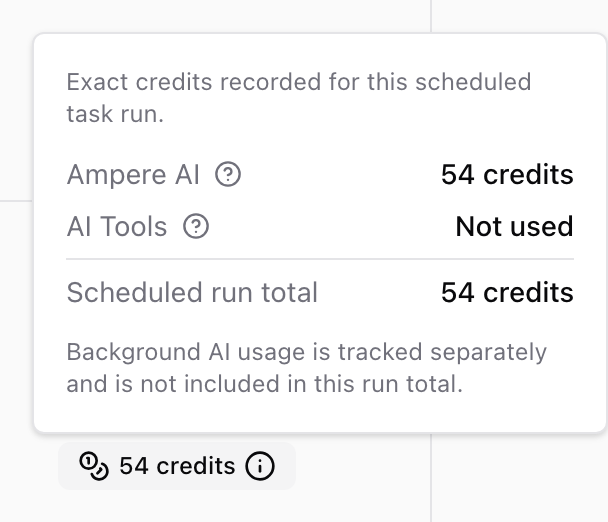
You may briefly see Credits pending after a run completes. The row updates on its own once the run's usage is recorded, so you don't need to do anything. If recording takes longer than usual, the row can stay at Credits pending for up to 24 hours, and its receipt says so. If the exact total can't be determined, the row shows Credits unavailable instead of an estimate or zero. Opening the receipt checks for an update.
The scheduled run total shows a number only when both the Ampere AI and AI Tools amounts are exact. Otherwise, it shows Pending or Unavailable. An amount the run didn't use shows Not used. The full session total appears only once all of that session's credits are exact.
Background AI usage is tracked separately and is not included in the scheduled run total. Reviewing run history, outputs, and settings does not spend credits.
Choose who receives run update emails
Task owners can manage run update recipients from the task's actions menu on the Tasks tab, and so can Organization owners and admins:
- Choose Manage email recipients.
- Select current Organization members who should receive future completed-run emails.
- Select Save recipients.
You can select up to 100 recipients for a task. Saving an empty selection means no run update emails are sent. A member without a verified email address can stay selected, but they won't receive run update emails until their address is verified.
Eligible Succeeded, Partial, and Failed runs can generate an update email for selected recipients. The email shows when the run was scheduled and when it finished, a Summary taken from Ampere's final answer, and the run's outputs by name or count. When relevant, it also explains what needs attention, such as results to review, a failed run, credits running out, something saved with the task that is no longer available, or a paused schedule. Its Review run button opens the run, and links at the bottom let recipients choose Manage notifications or Turn off this type of email. Recipients still need normal Ampere access to open private content.
Approval requests are not part of this email. Ampere sends them only to the task owner, as described in Respond when a run needs attention.
If a run update email does not arrive
Email delivery is not guaranteed. A selected recipient may not receive an email when:
- The task has no recipients selected.
- The recipient no longer belongs to the Organization.
- The recipient's email is missing or unverified.
- The recipient has turned off the relevant email notification.
- Delivery is suppressed after a hard bounce or spam complaint.
- The task is not eligible for execution, a notification limit applies, or delivery encounters a temporary or final error.
Review the run in Ampere first; the run history is the source of truth for status and saved work. Then confirm the task's current recipient list and the recipient's notification settings. Do not assume the run failed only because an email was skipped or delayed.
Confirm your review is complete
Before leaving the run, confirm that you have:
- Read the run status and its message.
- Opened the Ampere session or available saved outputs.
- Resolved every pending approval you are authorized to decide.
- Checked the credit total. A Credits pending total updates on its own, so you don't need to wait for it.
- Confirmed the recipient list if the team expects run update emails.
Keep a human review step before publishing or relying on prompt task output, especially when the run used public data, proposed an external action, or completed only part of the requested work.
Was this article helpful?
Related articles
Learn how to review Ampere outputs, download files when available, and ask Ampere to bundle multiple outputs as a zip.
Learn what Ampere resume and recovery can do after interruptions, what to review, and when to retry or ask for help.