Website crawl
Learn how Website Crawl saves public website pages into the Knowledge Base as reusable source material for Joule.
Last verified 2 days ago
Website Crawl adds public website pages to the Knowledge Base so Joule can use them as reusable source material. Use it when you want Ampere to pull in more than one page from the same site, such as product pages, help docs, landing pages, or public research pages.
Use Scrape URL for one page. Use Crawl Website when you want Ampere to follow links from a starting page and save multiple pages as Knowledge Base documents.
Before you start
You need:
- A public website URL that starts with
http://orhttps://. - Knowledge Base access in your Ampere organization.
- An organization plan or configuration where website crawling is available.
- A clear idea of how many pages and how deep into the site you want Ampere to go.
Website crawling works best with public pages. Sign-in pages, pages that block automated access, or sites with very dynamic content may return partial or noisy results.
Start a website crawl
- Open Knowledge Base.
- Select New.
- Select Crawl Website.
- Enter the website URL.
- Open Advanced Options if you want to change page limits, depth, or path filters.
- Select Crawl Website.
The crawl starts in the background. You can keep working while Ampere saves matching pages as Markdown documents in the Knowledge Base.
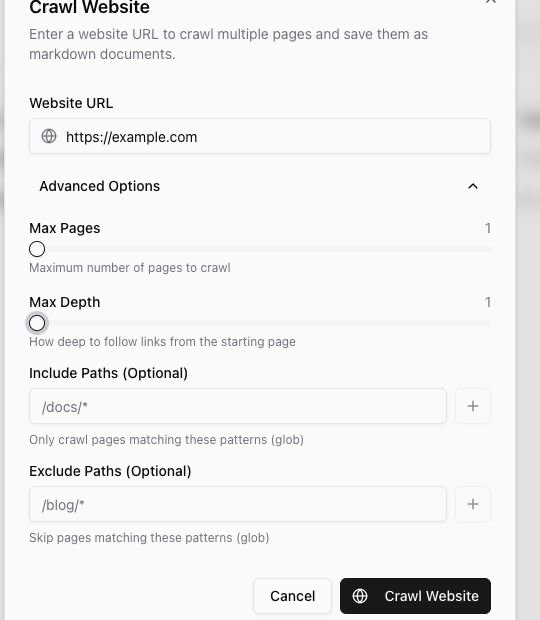
Crawl settings
The default crawl settings are:
- Max Pages: 10 pages.
- Max Depth: 2 link levels from the starting page.
- Timeout: 300 seconds for the overall crawl.
The hard limits are 1,000 pages and a maximum depth of 5. Higher values can produce more source material, but they can also take longer and pull in pages that are less relevant to your marketing work.
Use Include Paths when you only want pages that match a pattern, such as /docs/*. Use Exclude Paths when you want to skip a section, such as /blog/*.
What happens after the crawl starts
Ampere saves crawled pages as Markdown documents in the Knowledge Base. Each saved page appears in the file list with an indexing status. When a document is indexed, Joule can use it as Knowledge Base context in future work.
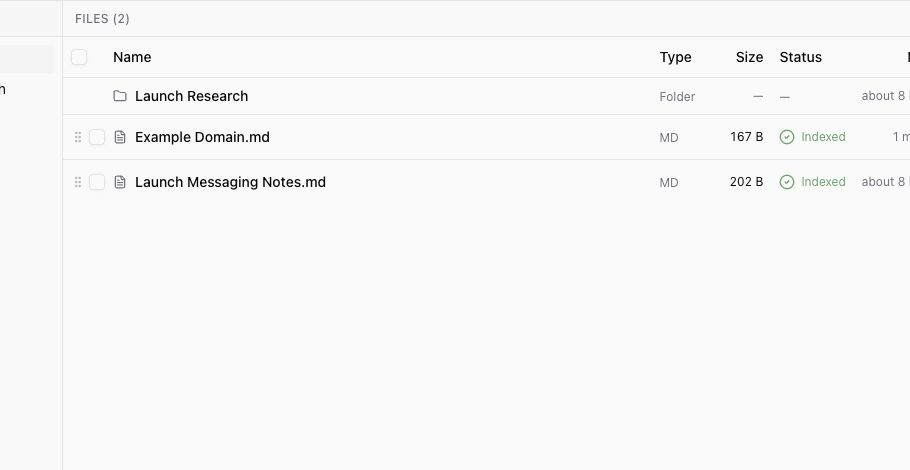
If the crawl is still running, you may see a crawl job status while Ampere works through the site. If the site returns no usable content, tighten the crawl settings or try a more specific starting URL.
Good crawl habits
Start small. Crawl a focused section first, then expand if the saved documents are useful.
Use path filters when the site has unrelated sections. For example, crawl product pages separately from a blog or changelog if those pages serve different jobs.
Review the saved documents after the crawl. Remove pages that are stale, off-topic, duplicated, or not useful for the work you want Joule to do.
Do not crawl private, confidential, or restricted pages. Add only source material your team is allowed to use in Ampere.
Was this article helpful?
Related articles
Create a project brief so Joule has the goals, audience, voice, and guardrails for related marketing work.
Attach source files to a project so Joule can use the right references for related chats and outputs.
Learn where saved AI avatars live, what their status means, and how to reuse one in Joule.