Sonnet 5.5 and Opus 5.5, with a clearer model menu
New sessions, scheduled task runs, and Monitoring follow-ups now use Sonnet 5.5 and Opus 5.5, while sessions already in progress keep their model and the model menu tells you why a choice isn't available there.
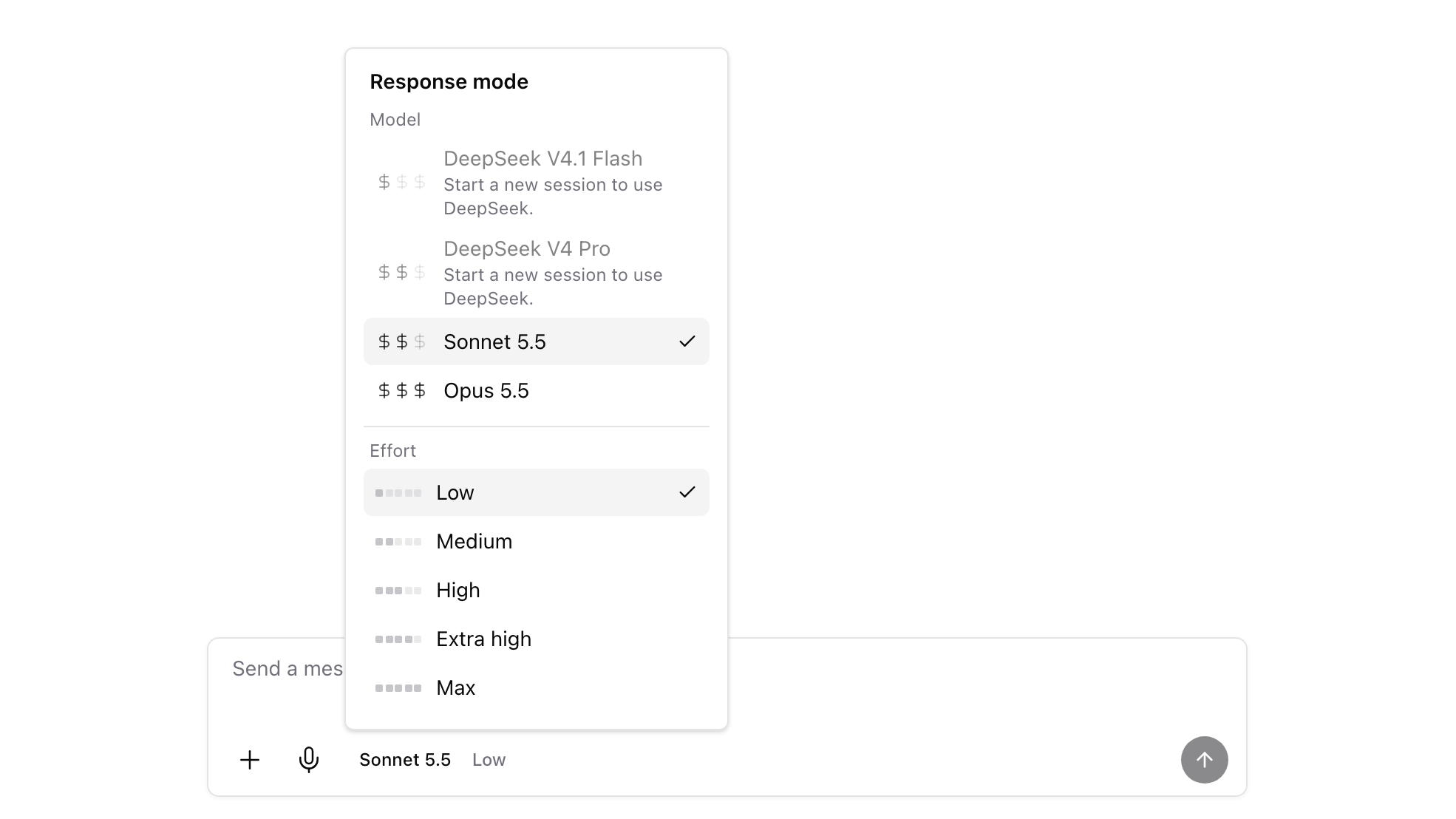
Ampere now runs Sonnet 5.5 and Opus 5.5 in new sessions, and the model menu tells you what each choice can do in the session you're in.
What's new
Sonnet 5.5 and Opus 5.5
- The newest Sonnet and Opus, with no setting to change. New sessions, new scheduled task runs, and new Monitoring follow-ups use Sonnet 5.5 when you choose Sonnet and Opus 5.5 when you choose Opus.
- Sessions in progress keep their model. A session that started on Sonnet 5 or Opus 4.8 stays on it, so work you already have going doesn't change model partway through.
- The same five effort levels. Sonnet 5.5 and Opus 5.5 offer Low, Medium, High, Extra high, and Max in sessions and scheduled tasks.
A model menu that explains itself
- A reason on every choice you can't use here. When a model can't run in your session, its row in the menu says why, such as "Available in a new session" or "Not available in this session".
- A new session in one click. In a session still on Sonnet 5 or Opus 4.8, the menu says "New sessions use Sonnet 5.5" (or Opus 5.5) and offers Start a new session. A model marked "Available in a new session" does the same when you choose it.
- Your message comes with you. Ampere opens the new session in the same Project and moves the message you were writing, with its attached files. If a file can't move, Ampere tells you which one to add again, and if the new session can't start, your message stays where it was.
Why it matters
You get the newest Sonnet and Opus without changing anything, and a session you're in the middle of keeps the model it started with. When the model you want isn't available where you are, the menu tells you why and takes you to a session that runs it, with your message intact, so you don't copy text over or start your request again.
Where to find it
In any session, open the model menu in the composer: the button that shows your model and effort. When you create or edit a scheduled task, you get the same choices.